 knowledge kit19
To understand the notification settings on the support portal follow the steps mentioned below:
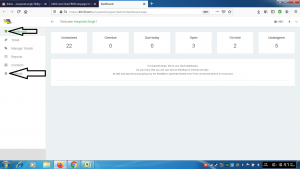
- Go to the link https://kit19.com/(your_username)/support/admindashboard.aspx
- Click the Dashboard button
- Click the Settings button
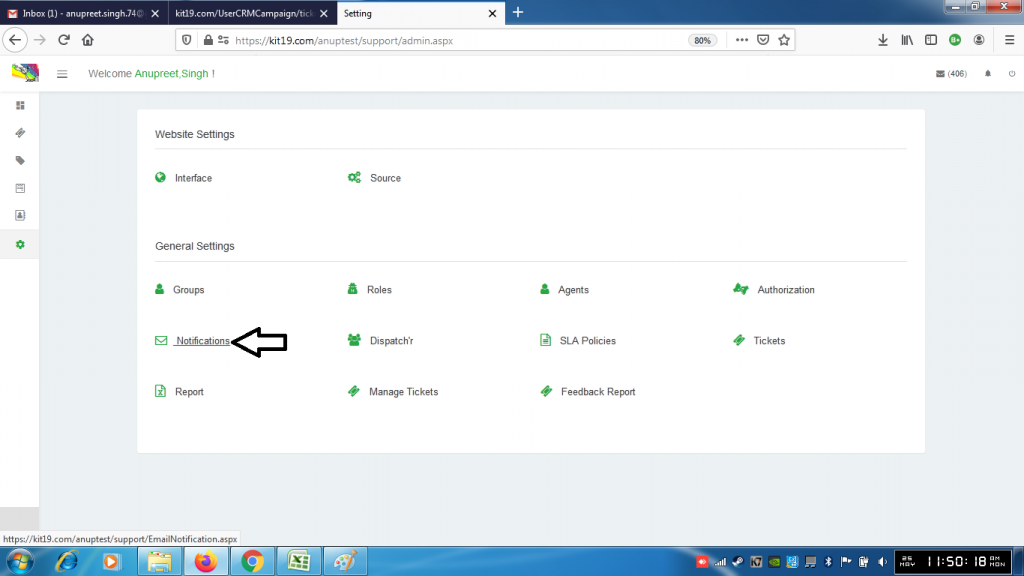
- Click the Notifications button
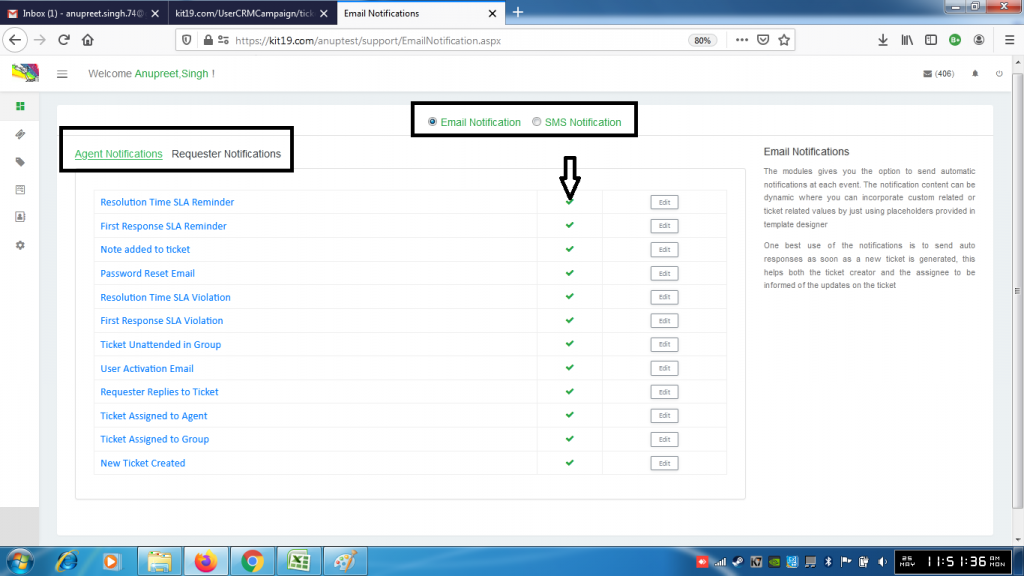
- Either select Agent Notifications or Requester Notifications
- Either select Email Notifications or SMS Notifications
- Click the icon shown above to deactivate a notification
- To reactivate the notification click the same icon again
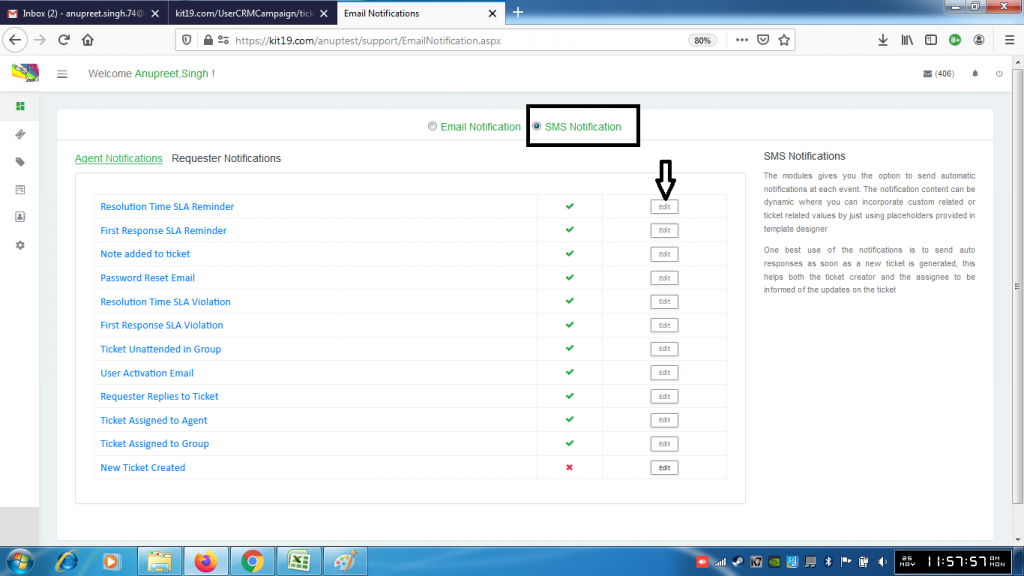
- To edit SMS Notification Click the Edit button
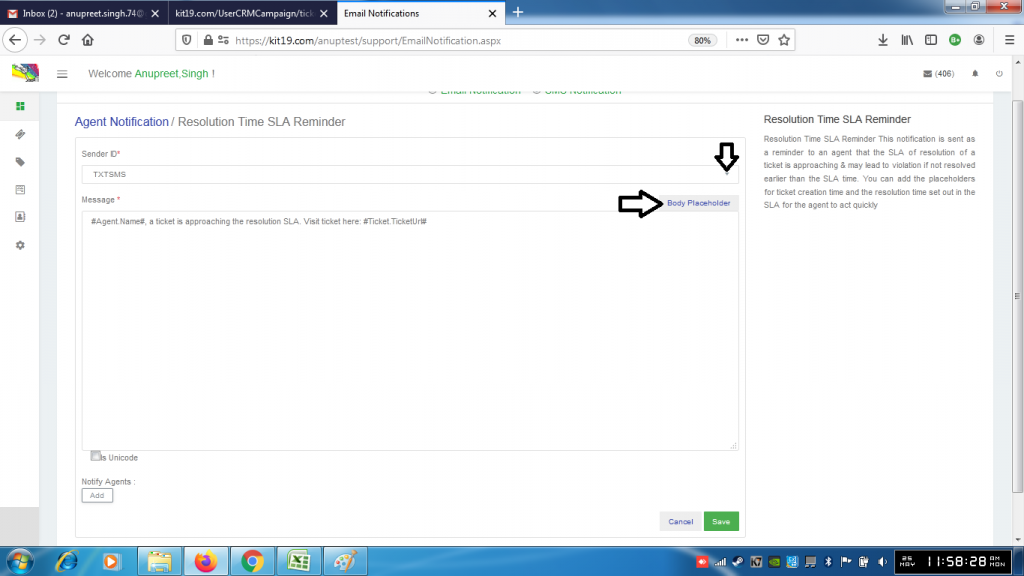
- Change the sender ID
- Click the place holder button
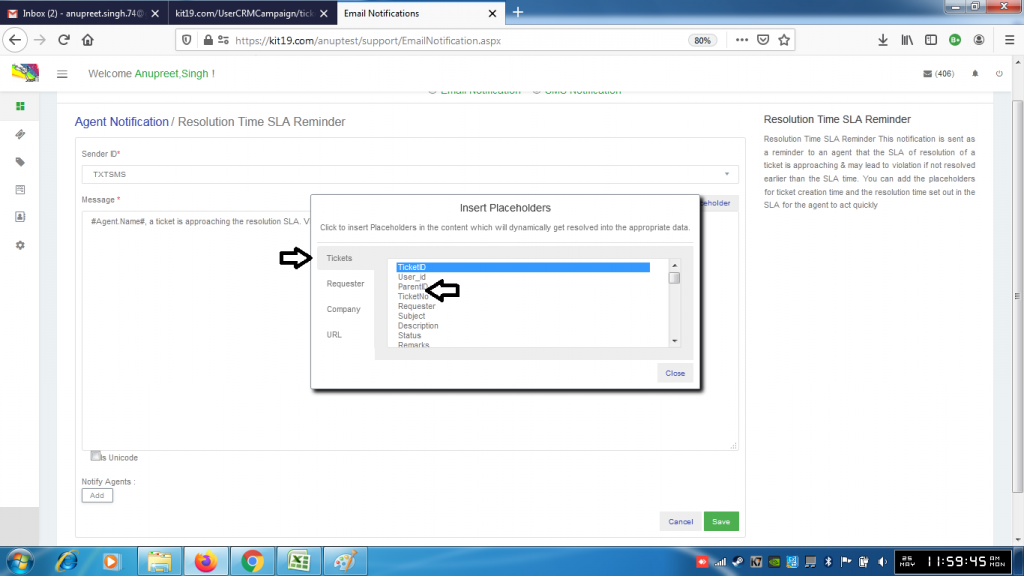
- If you want select a placeholder from Tickets
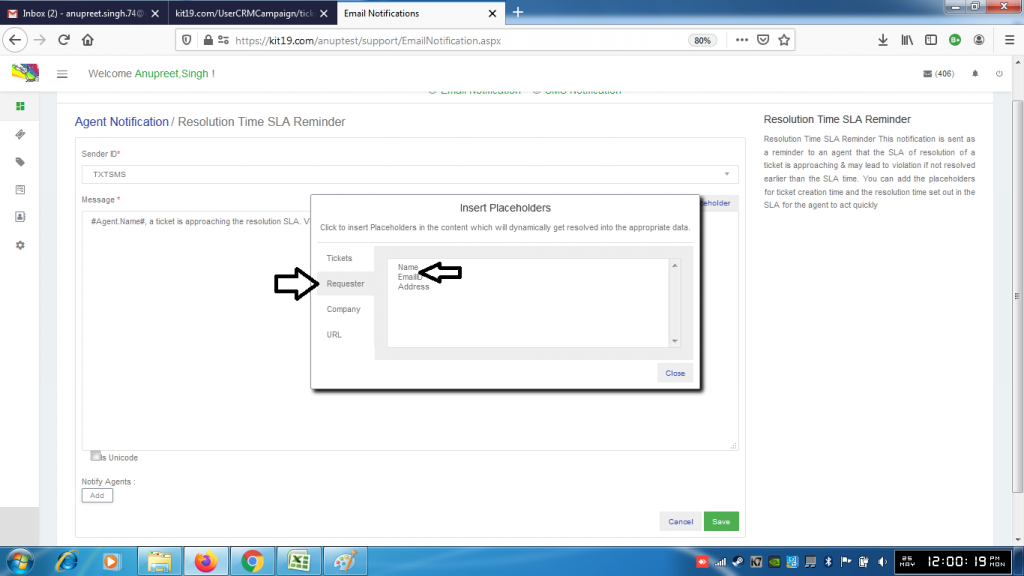
- If you want select a placeholder from Requester
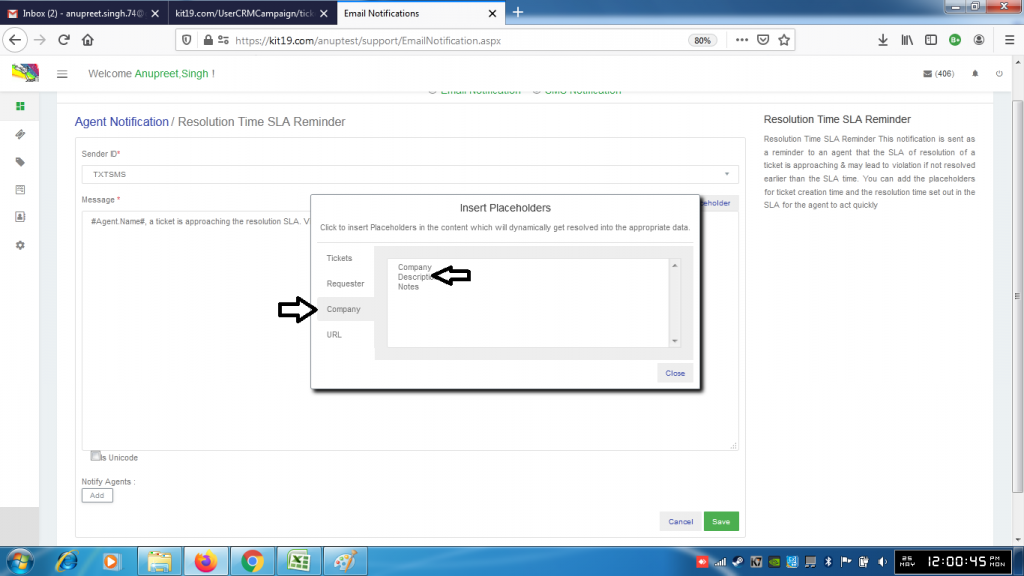
- If you want select a placeholder from Company

- If you want select a placeholder from URL
- Click save
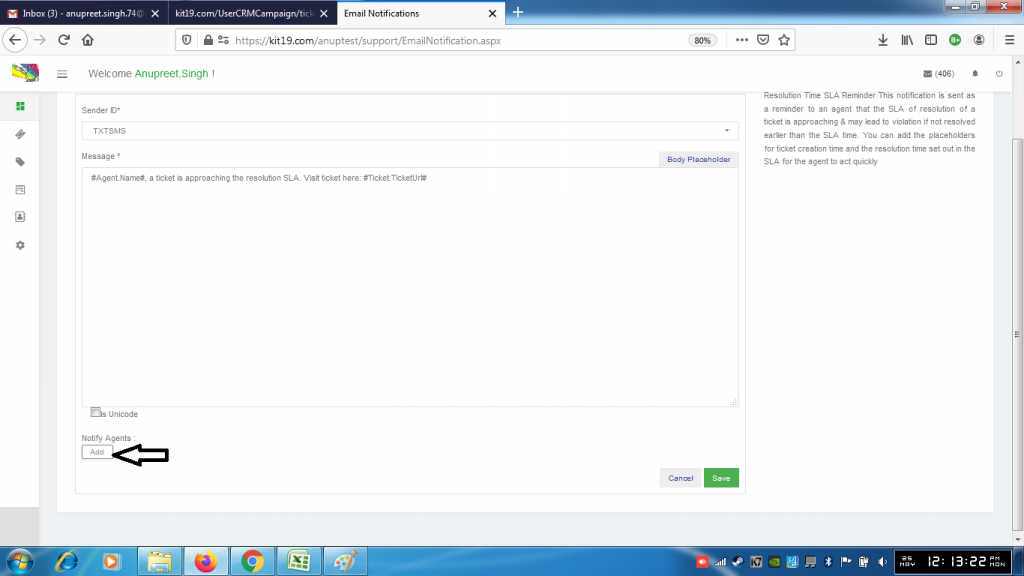
- To add agent to a notification click Add
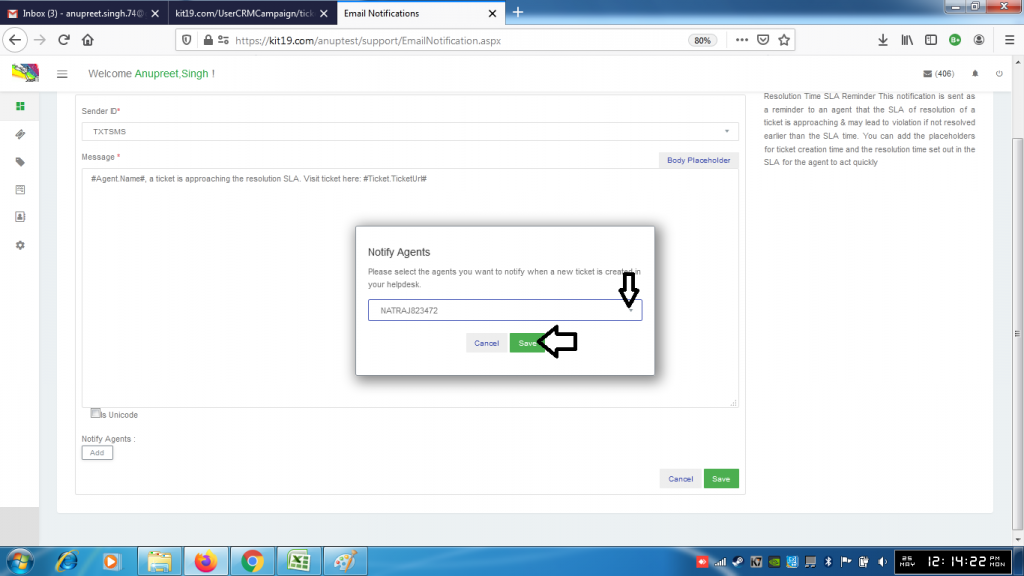
- Select an agent
- Click Save
Agent would be added to the notification.
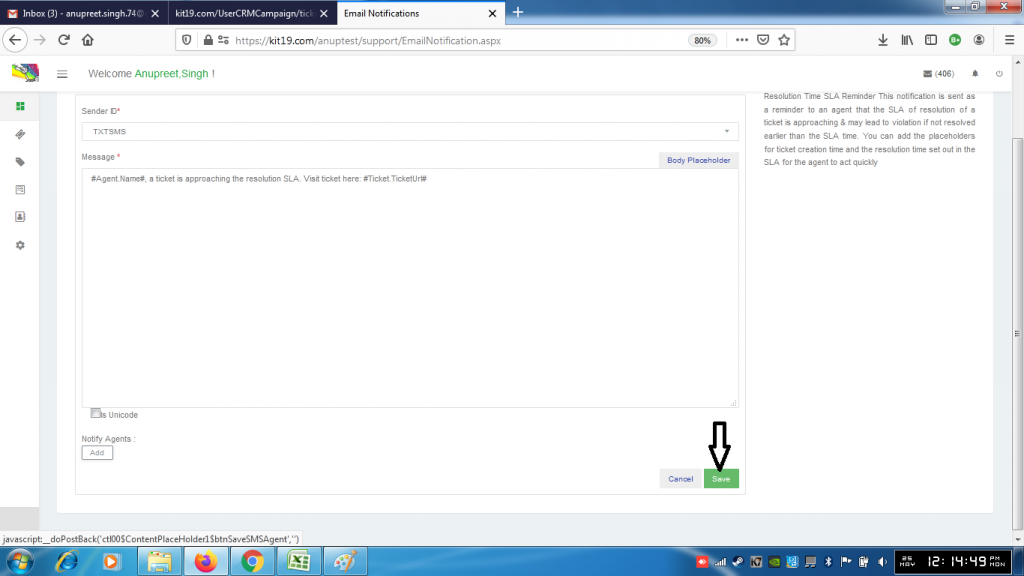
- Click Save
The SMS notification would be edited.
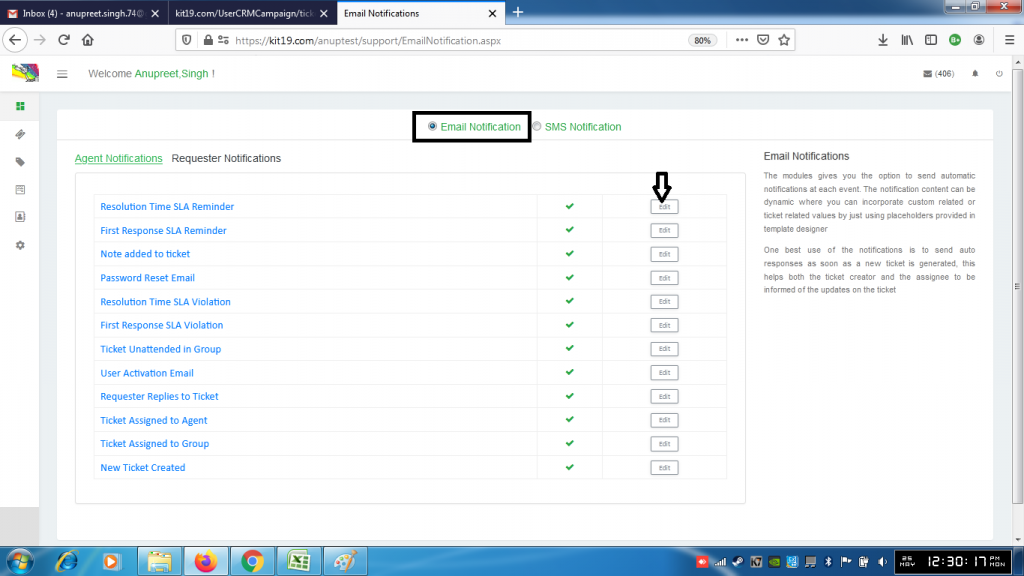
- To edit email notification select email notification and click edit
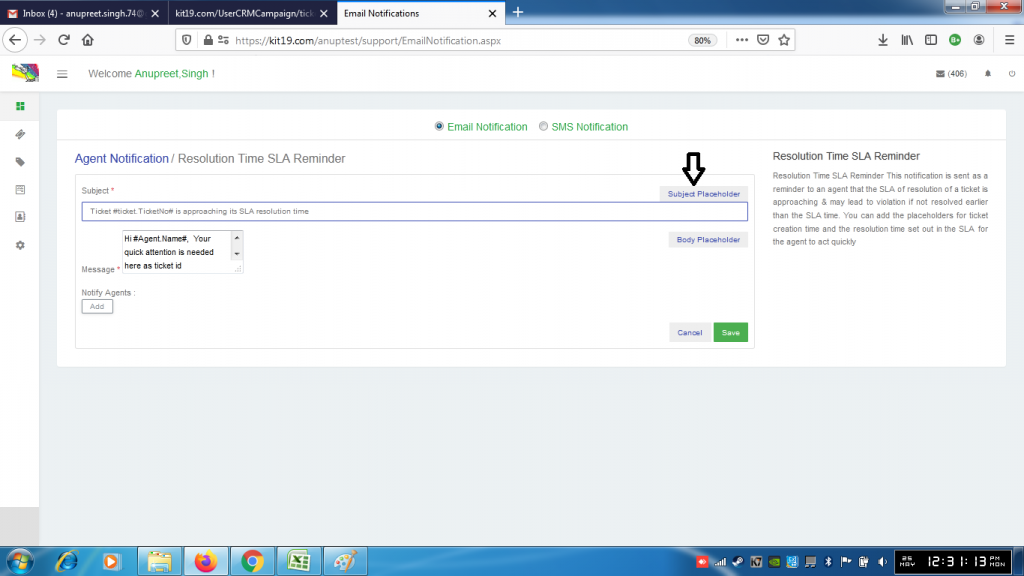
- Click Subject Placeholder
- If you want select a placeholder from Tickets
- If you want select a placeholder from Requester
- If you want select a placeholder from Company
- If you want select a placeholder from URL
- Click save
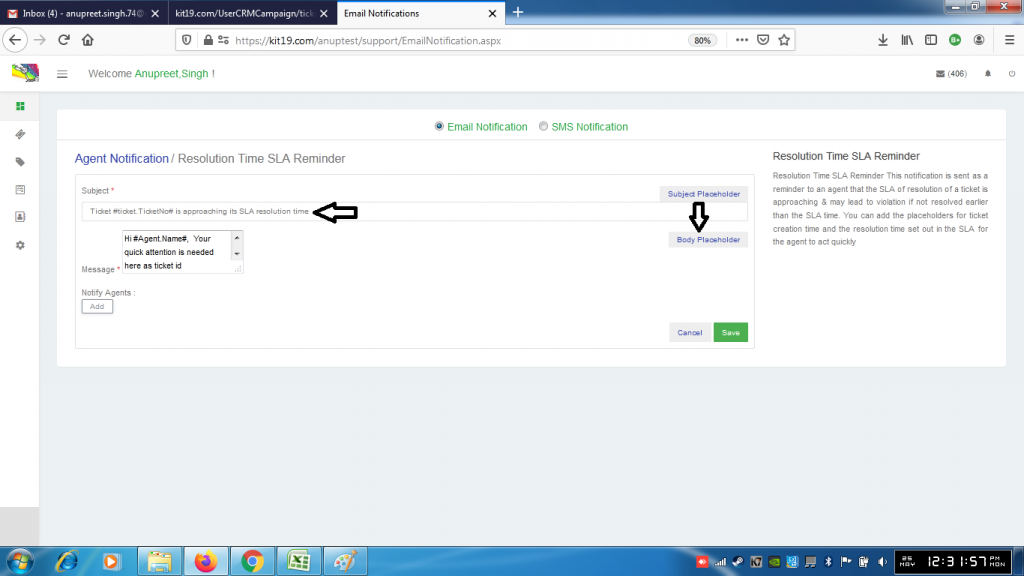
- If you want you can enter some extra text in the subject field
- Click the Body Placeholder button
- If you want select a placeholder from Tickets
- If you want select a placeholder from Requester
- If you want select a placeholder from Company
- If you want select a placeholder from URL
- Click save
- To add agent to a notification click Add
- Select an agent
- Click Save
Agent would be added to the notification.
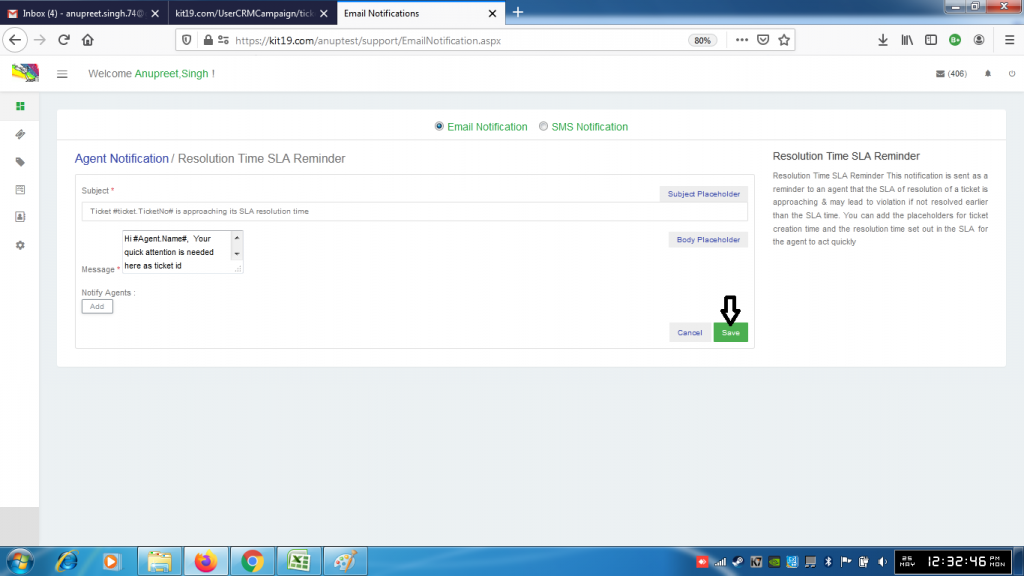
- Click the Save button
Email notification would be edited.
