 knowledge kit19
To understand the dispatch’r settings on the support portal follow the steps mentioned below:
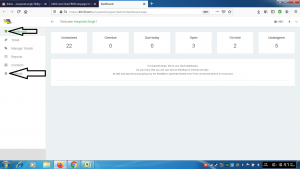
- Go to the link https://kit19.com/(your_username)/support/admindashboard.aspx
- Click the Dashboard button
- Click the Settings button
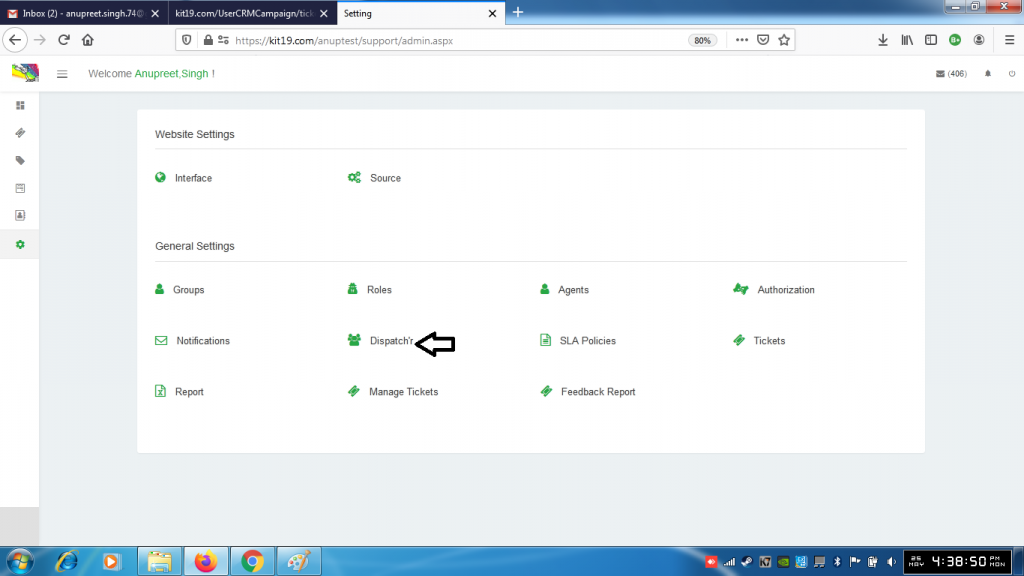
- Click Dispatchr
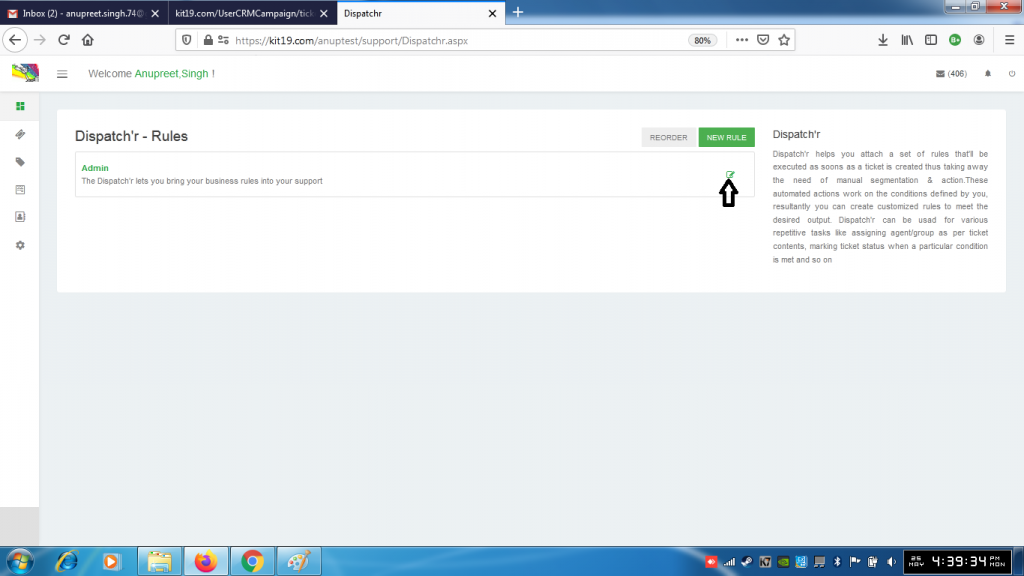
- Click the edit icon
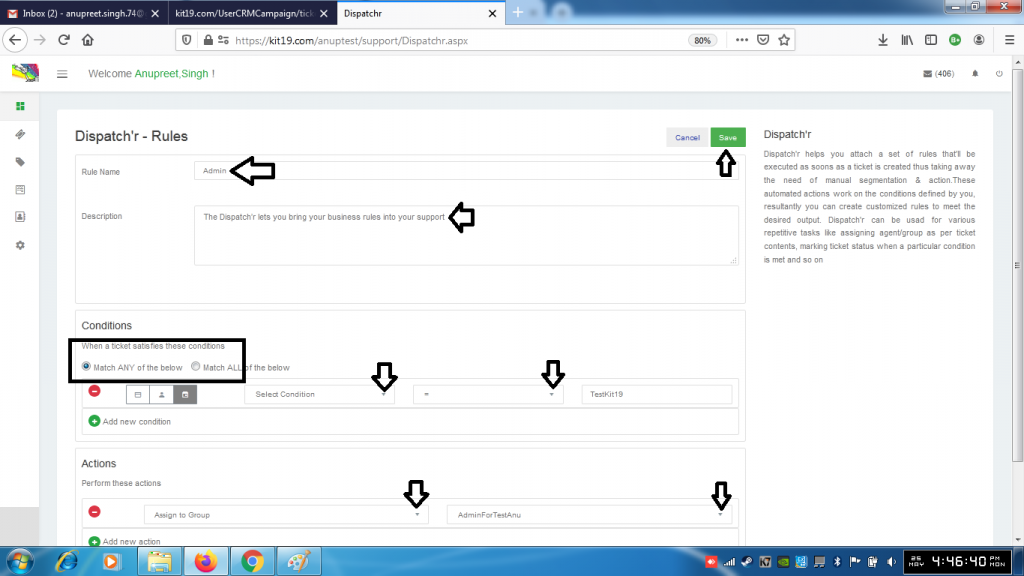
- Change the values you want
- Click the save button
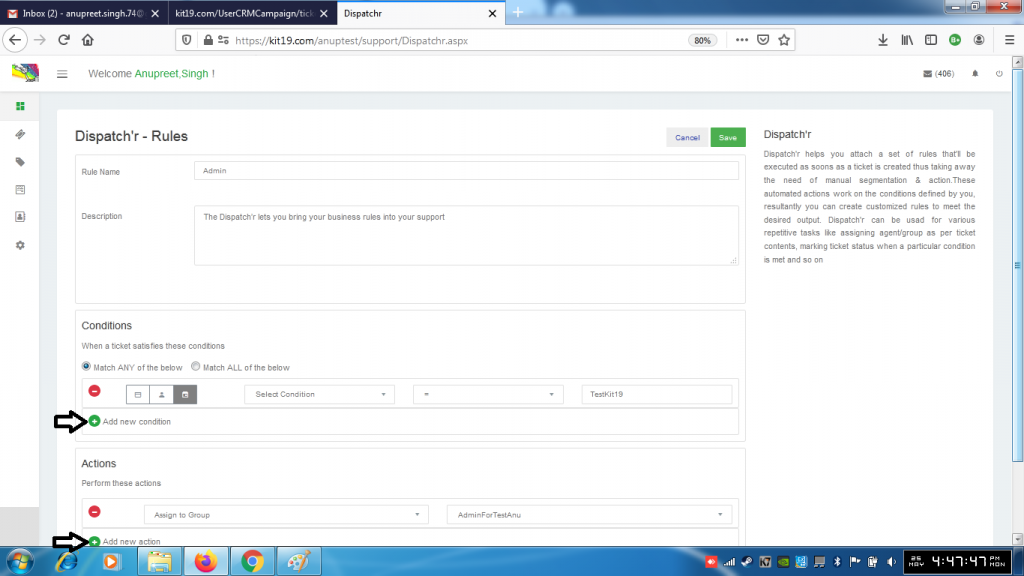
- Click the Add condition button to add a new condition
- Click the Add action button to add a new action
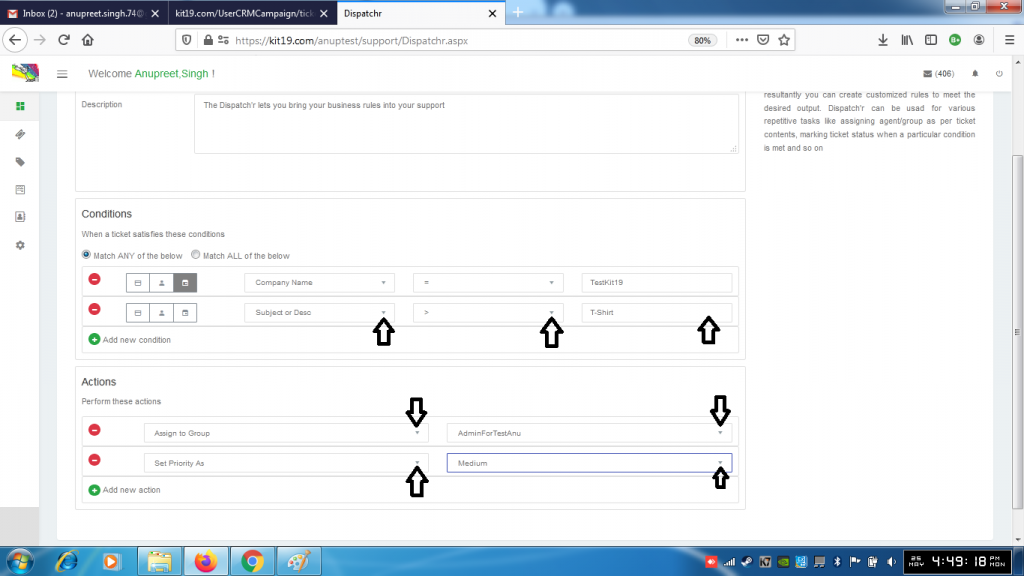
- Fill out the new condition details
- Fill out the new action details
- Click the Save button
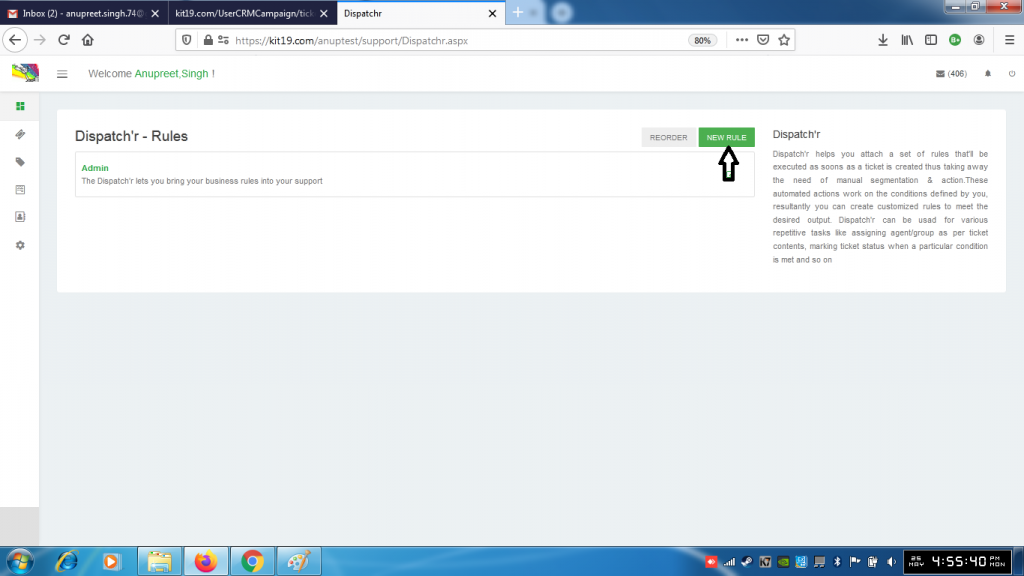
- To add a new rule click the New Rule button
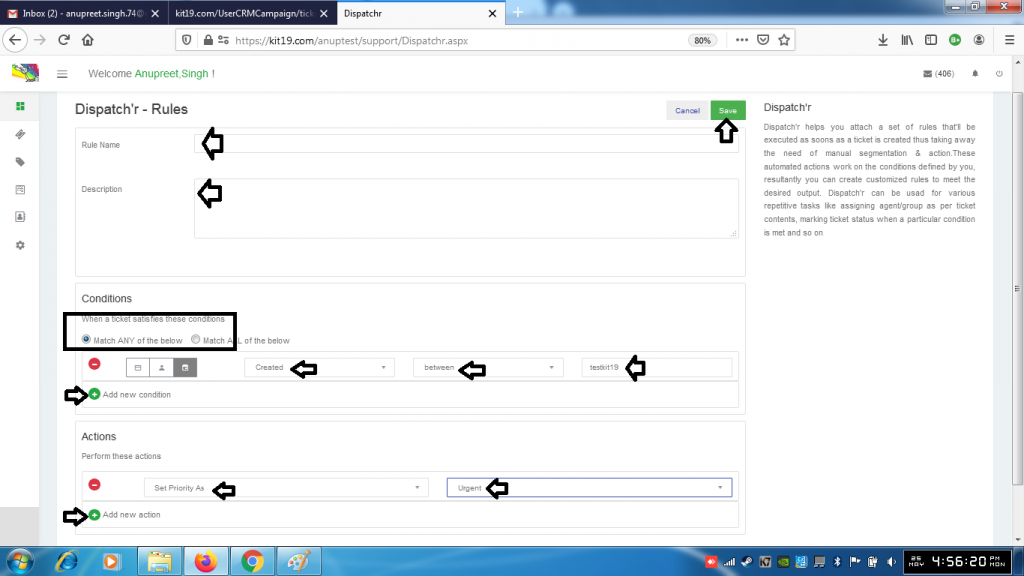
- Fill out the following details:
- Name
- Description
- Conditions
- Action
- You can add as many conditions as you want
- You can add as many actions as you want
- Click the save button
A new rule would be added to your support portal.
Note: Dispatch’r helps you to set rules (conditions) when a ticket is created. Based on these conditions automated actions are taken for sorting out and managing the support tickets. This minimizes the human intervention.
