 knowledge kit19
To create a landing page follow the steps mentioned below:
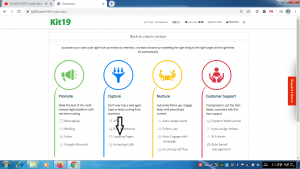
- Click landing pages
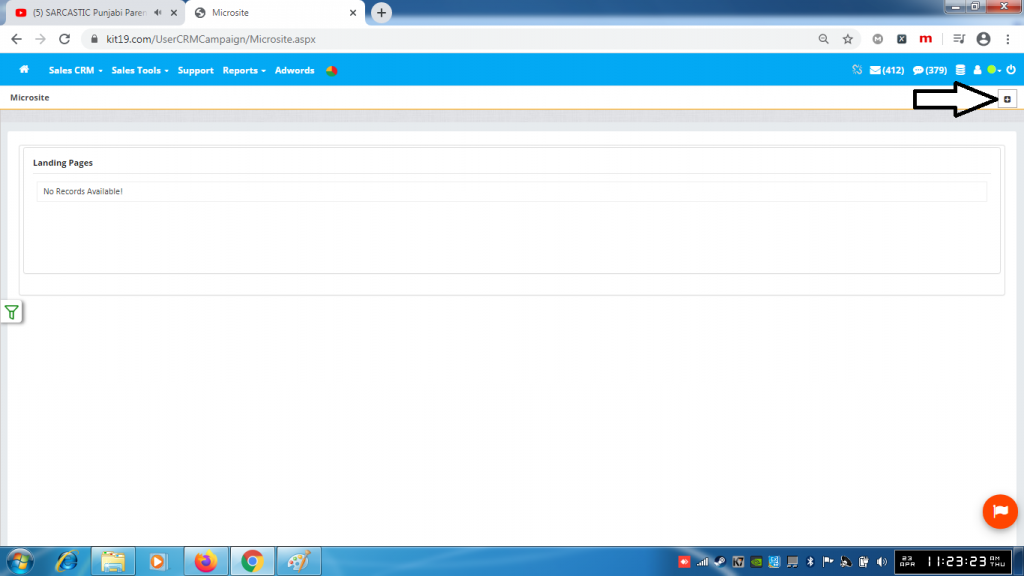
- Click the + button
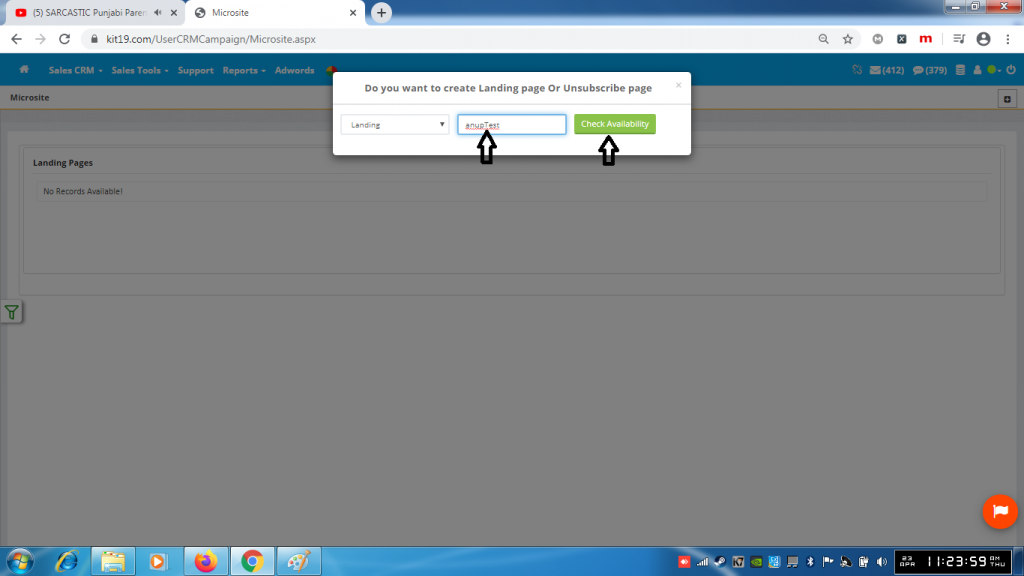
- Select Landing from the drop down list (Mandatory)
- Enter a name for your microsite (Mandatory)
- Click the check availability button
- If the system displays a message ‘MicroSite Name not available’, then enter a different name
- Click the check availability button again
Case 1: Action after landing page is submitted SMS (Compose message / Select Template). If this option is selected your potential customer would be sent an SMS after he submits his details on the landing page.
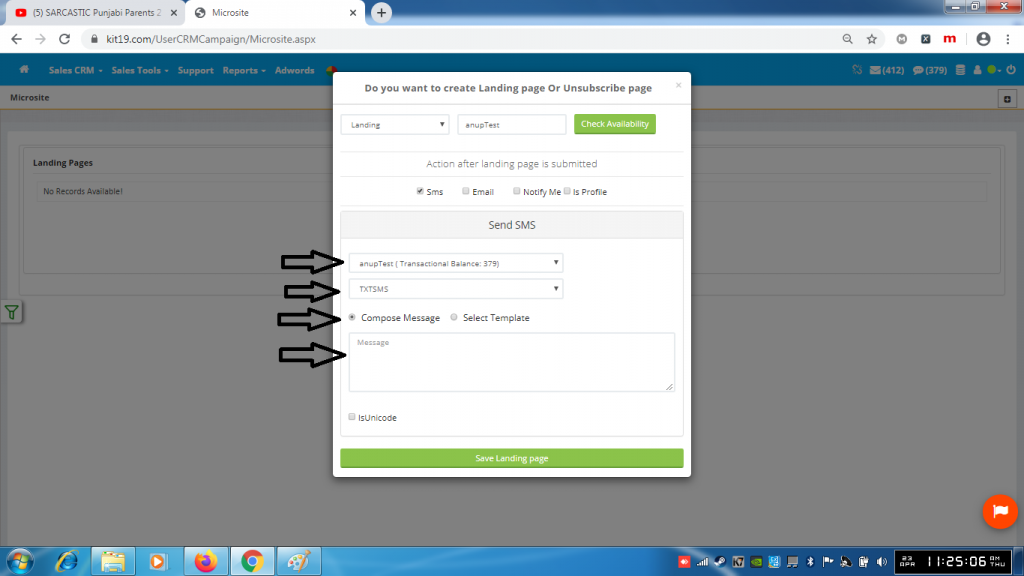
- Tick the box Sms
- Select account
- Select Sender ID
- Select Compose message
- Enter the message that you want to send to the customer
- Click Save Landing page
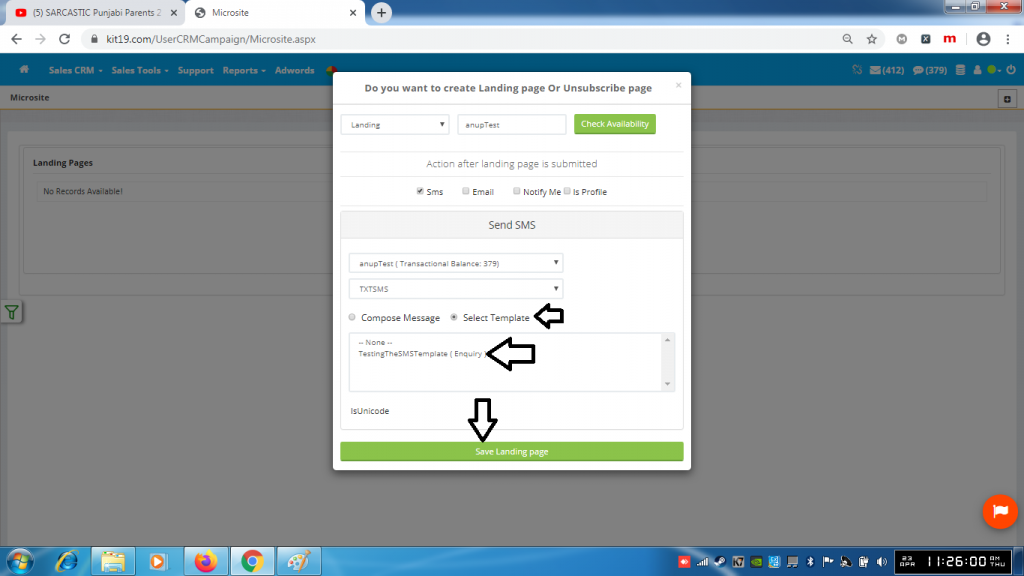
If you select the option Select Template
- Select the Sms template
- Click Save Landing page
Note: You can either select the option Compose Message or Select Template
Case 2: Action after landing page is submitted Email(Compose message / Select Template). If this option is selected your potential customer would be sent an Email after he submits his details on the landing page.
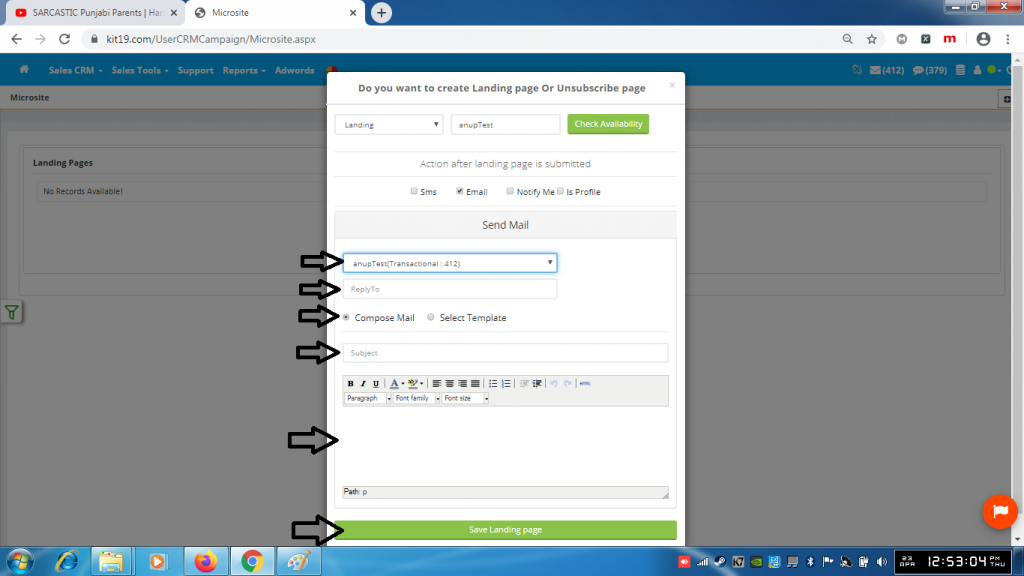
- Tick the box Email
- Select account
- Enter the reply to email
- Select Compose Mail
- Enter the subject that you want your customer to notice
- Enter the message that you want to sent to customer
- Click Save Landing page
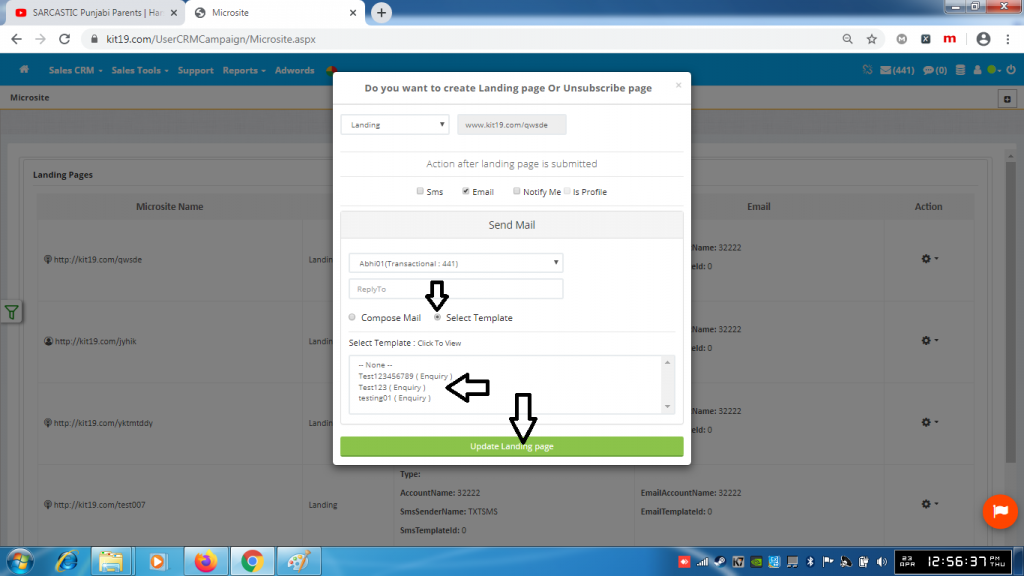
If you select the option Select Template
- Select a template
- Click Save Landing page
Note: You can either select the option Compose Message or Select Template
Case 3: Action after landing page is submitted Notify Me. If this option is selected you will either receive an email on your registered email address or an SMS on your registered phone number or you will receive both.
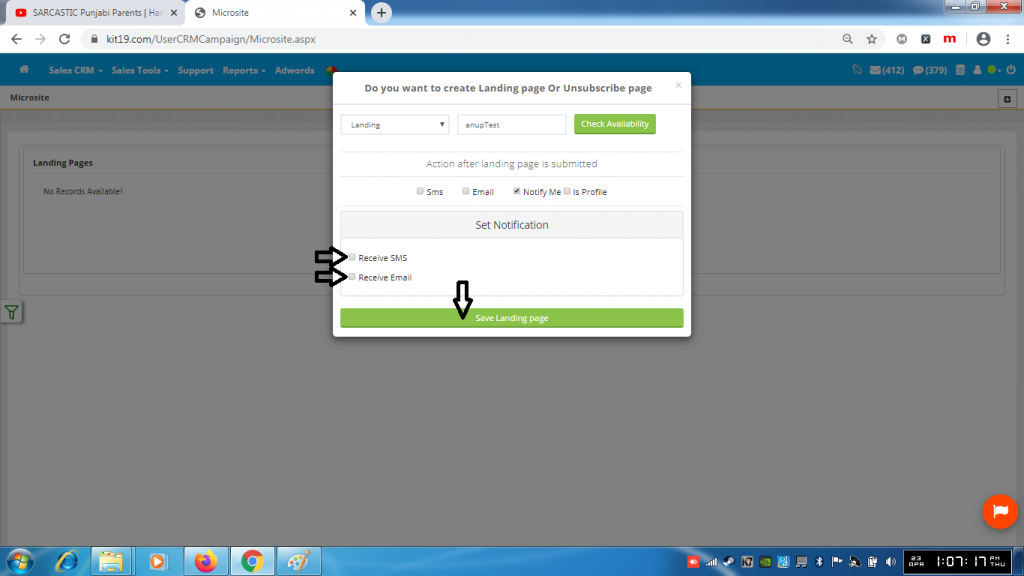
- Select Receive SMS
- or Select Receive Email
- or Select both
- Click Save Landing page
Case 4: Action after landing page is submitted isProfile. If this option is selected your potential customers’ would be created after he submits his details on the landing page.
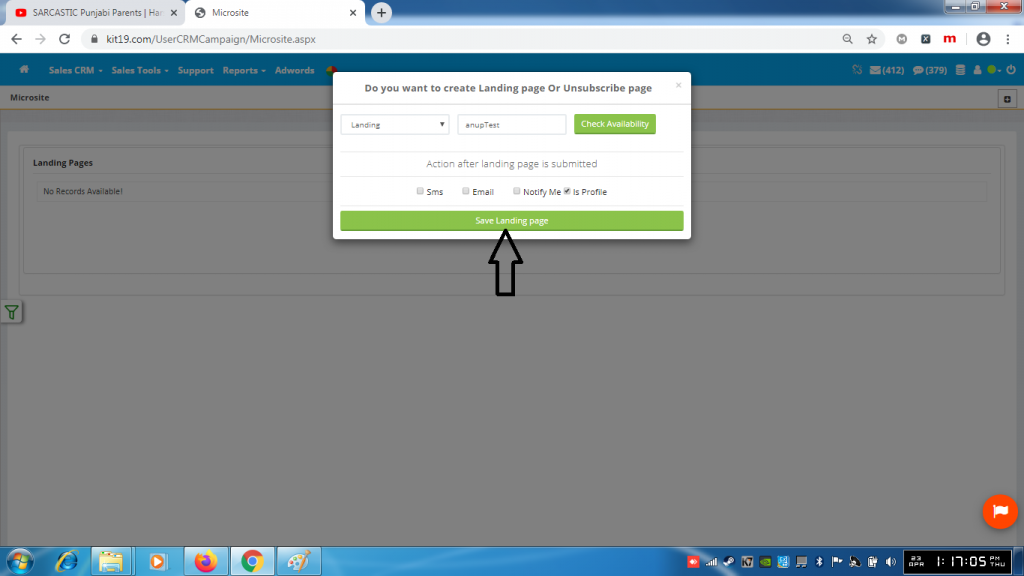
- Tick the box is Profile
- Click Save Landing page
Note: If you want you can tick all of the boxes SMS, Email, Notify Me and is Profile. Or you can tick any of the boxes you need, however at least one box has to be ticked.
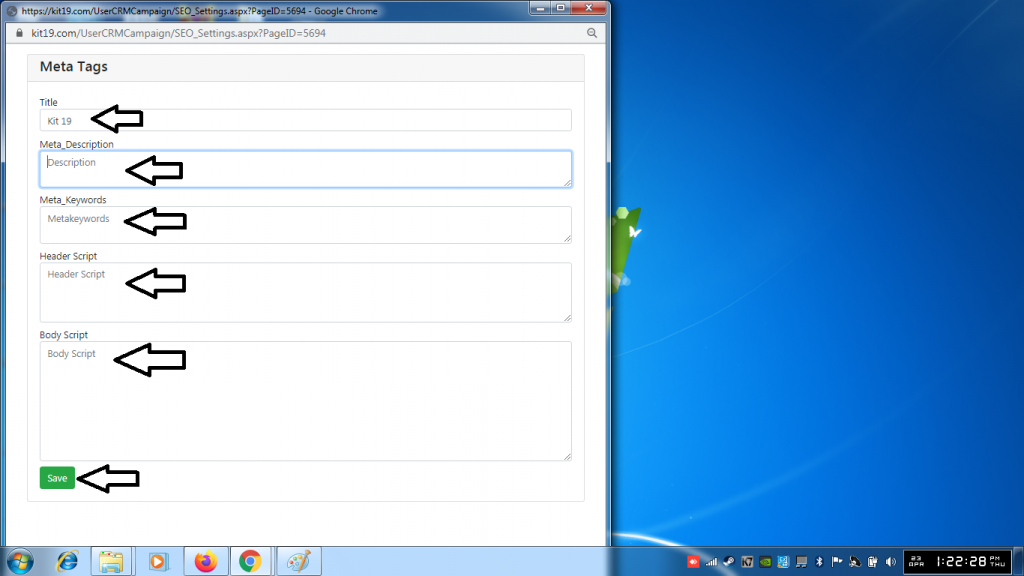
- Enter the desired title of your landing page in Title
- Enter the desired meta description of your landing page in Meta_Description
- Enter the desired meta keywords in Meta_Keyword
- Enter the desired script in Header Script(these are generally java script code)
- Enter the desired script in body Script (these are generally java script code)
- Click Save
Note of all these fields are optional. However, it is strongly recommended that you enter the title, meta description and meta keywords.
