 knowledge kit19
To edit a landing page follow the steps mentioned below
- Go to the URL https://kit19.com/UserCRMCampaign/Microsite.aspx
- Click the Settings icon under Action
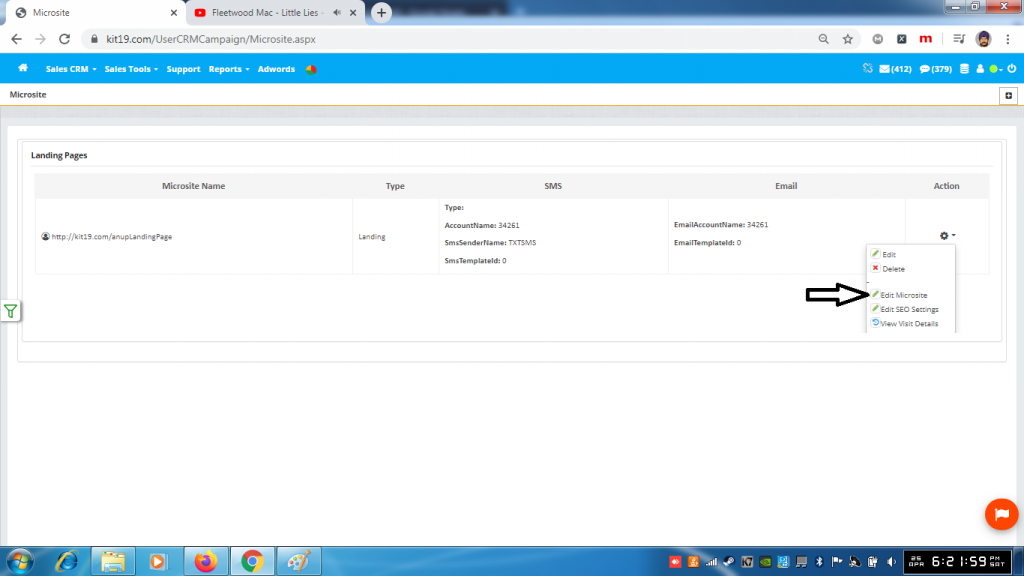
- Click Edit Microsite
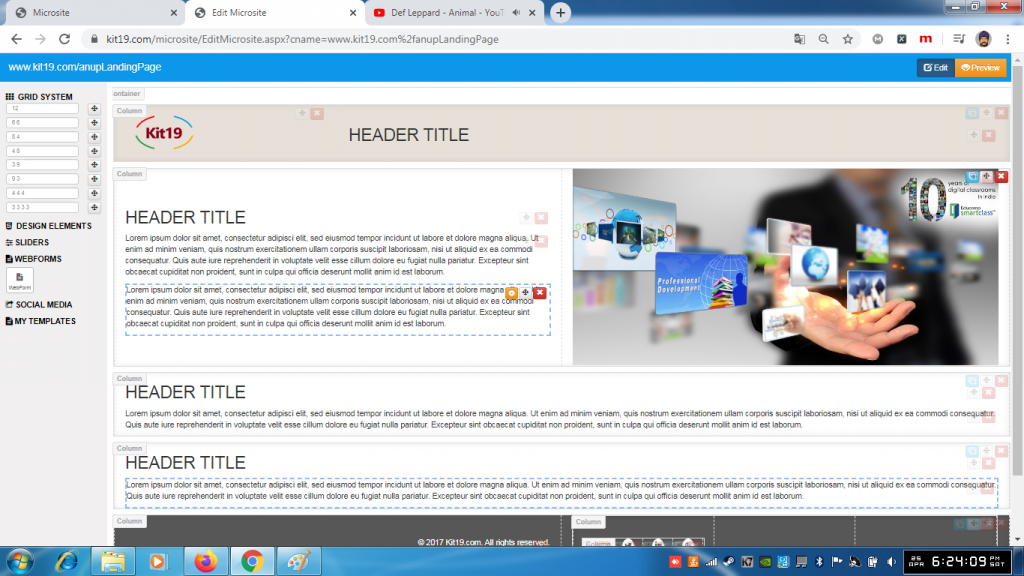
- Here you can make changes to your landing page
To preview a landing page follow the steps mentioned below
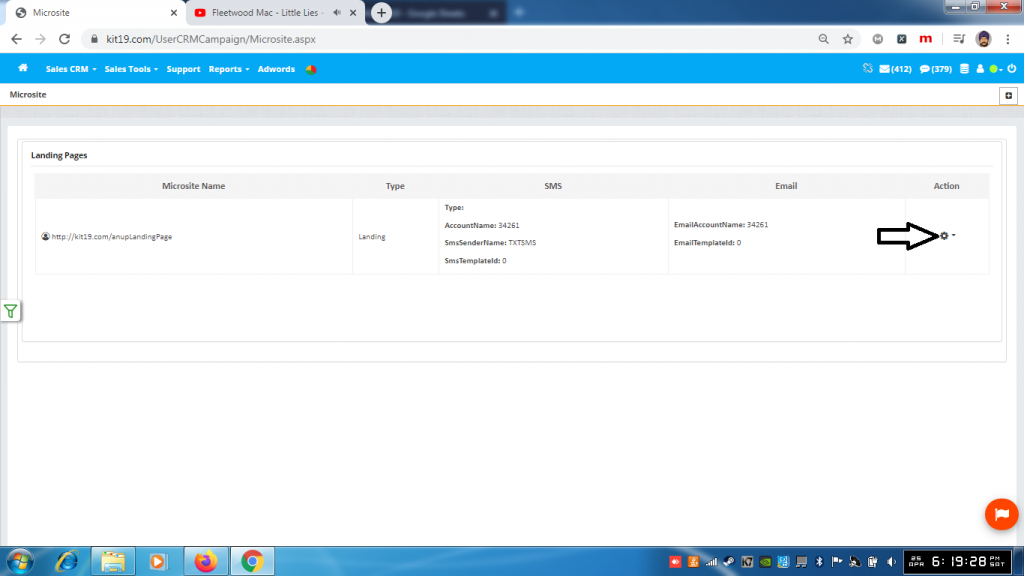
- Go to the URL https://kit19.com/UserCRMCampaign/Microsite.aspx
- Click the Settings icon under Action
- Click Edit Microsite
- Make changes to your landing page
 .
.
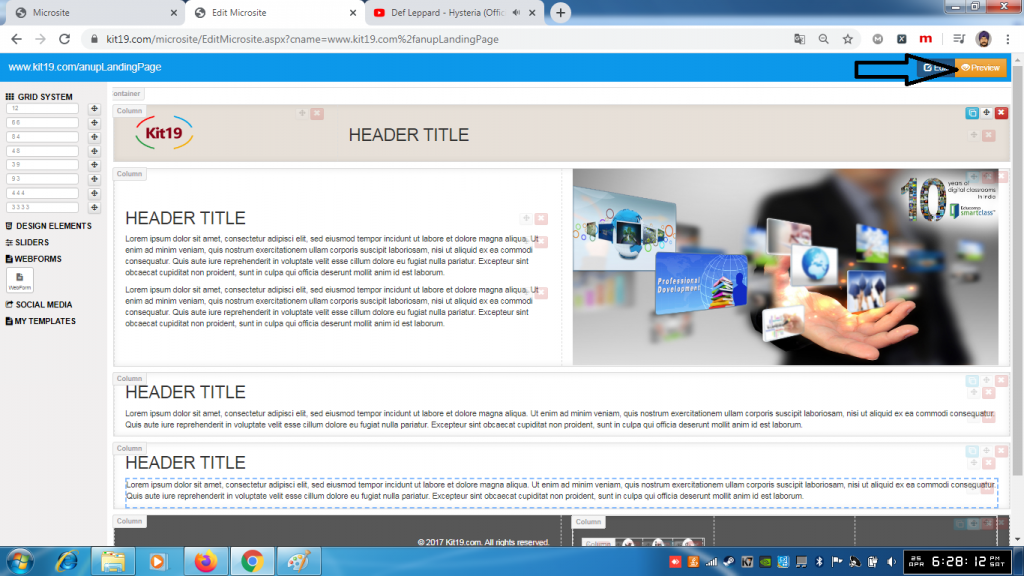
- Click the preview button
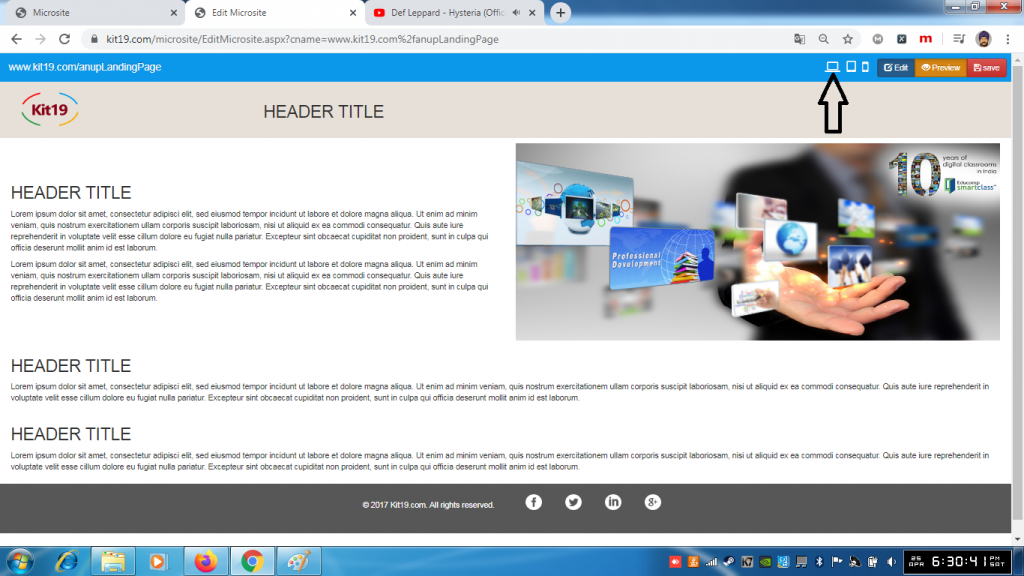
- By default the landing page will be displayed in desktop mode
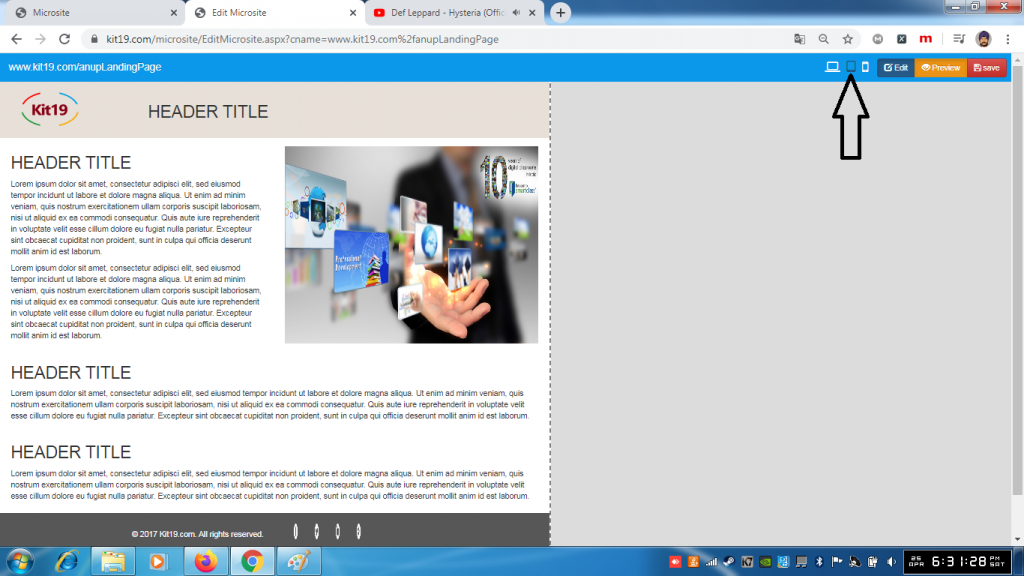
- To preview the landing page in tablet mode click the tablet icon
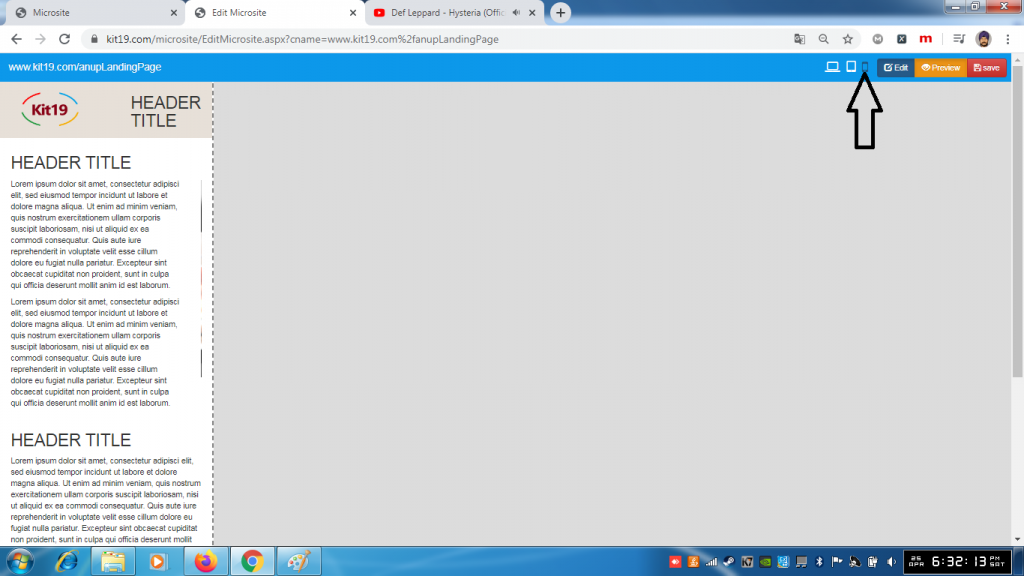
- To preview the landing page in mobile click the mobile icon
To save a landing page follow the steps mentioned below:
- Go to the URL https://kit19.com/UserCRMCampaign/Microsite.aspx
- Click the Settings icon under Action
- Click Edit Microsite
- Make changes to your landing page
- Click the preview button
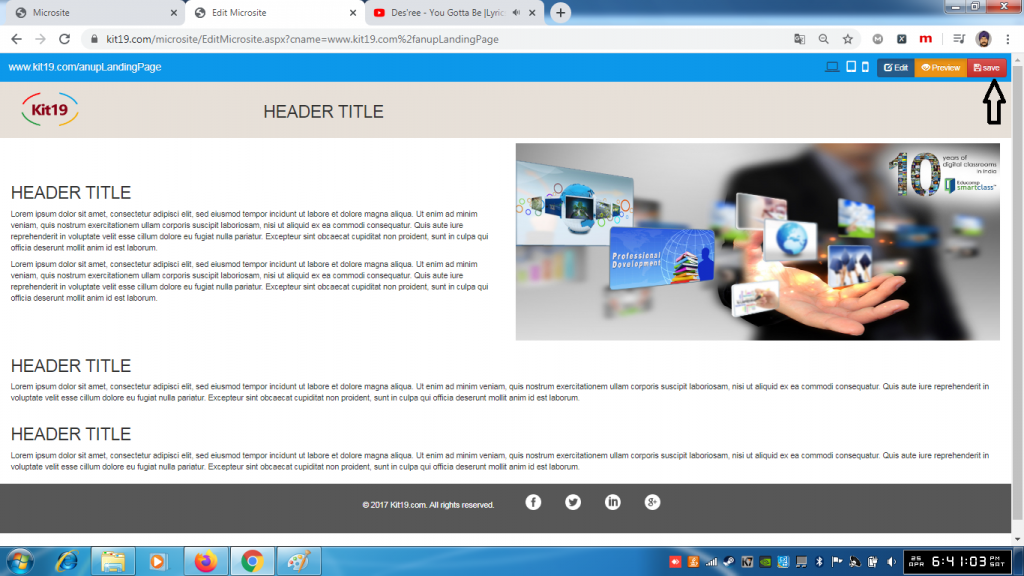
- Click the Save button
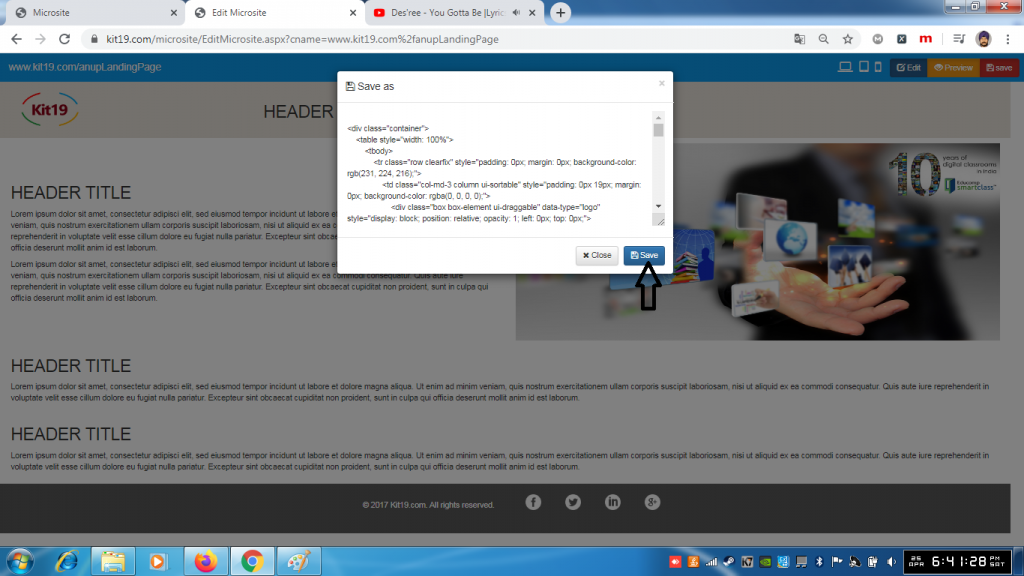
- Click the Save button on the pop up
Caution: Do not change the code that is displayed on the modal pop up.
