 knowledge kit19
Design Elements will add content, images, icons, buttons, etc. to your landing page. The design elements are the ones that will give a meaning and a face to your landing page.
The header design element:
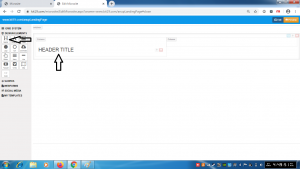
- Drag and drop the header element to the desired location
- Header element is generally used for headings and sub-headings on the landing page
Note: You have to first add a grid element and then add a header to the grid element
The paragraph design element:
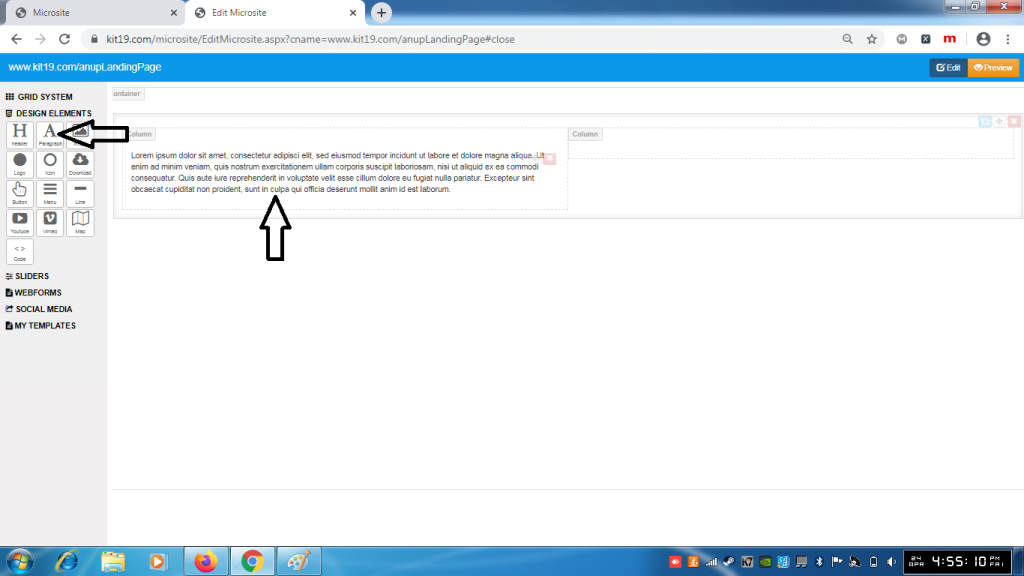
- Drag and drop the paragraph element to the desired location
- Paragraph element is used to add paragraphs to the landing page
Note: You have to first add a grid element and then add a paragraph to the grid element
The image design element:
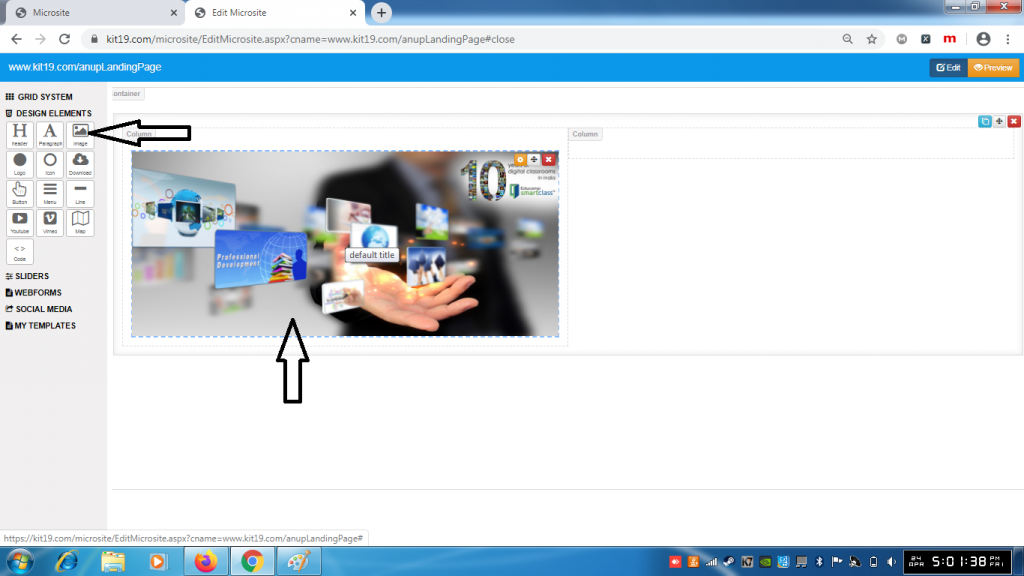
- Drag and drop the image element to the desired location
- Image element is used to add images to the landing page
Note: You have to first add a grid element and then add an image to the grid element
The logo design element:
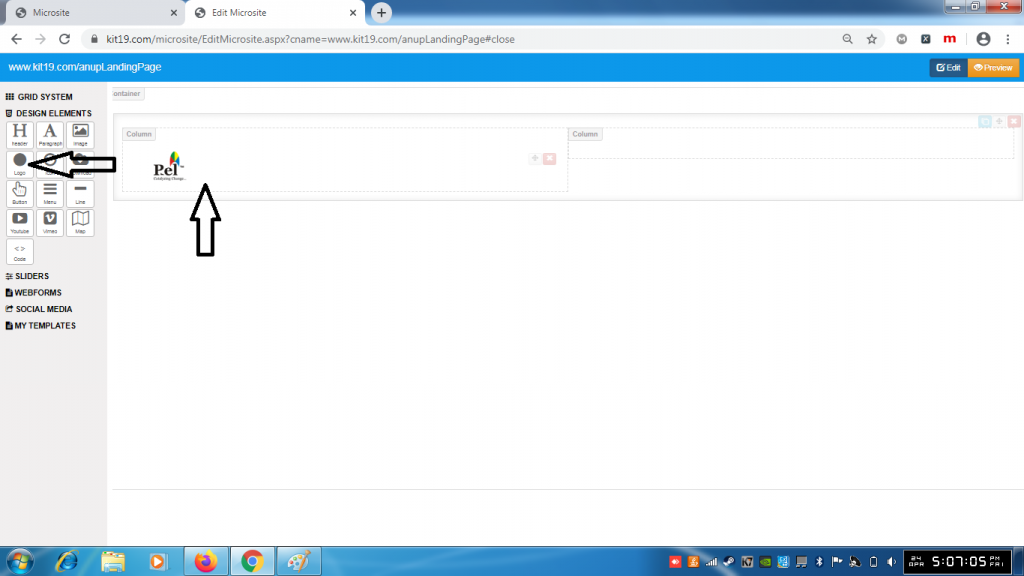
- Drag and drop the logo element to the desired location
- Logo element is used to add logos to the landing page
Note: You have to first add a grid element and then add a logo to the grid element
The icon design element:
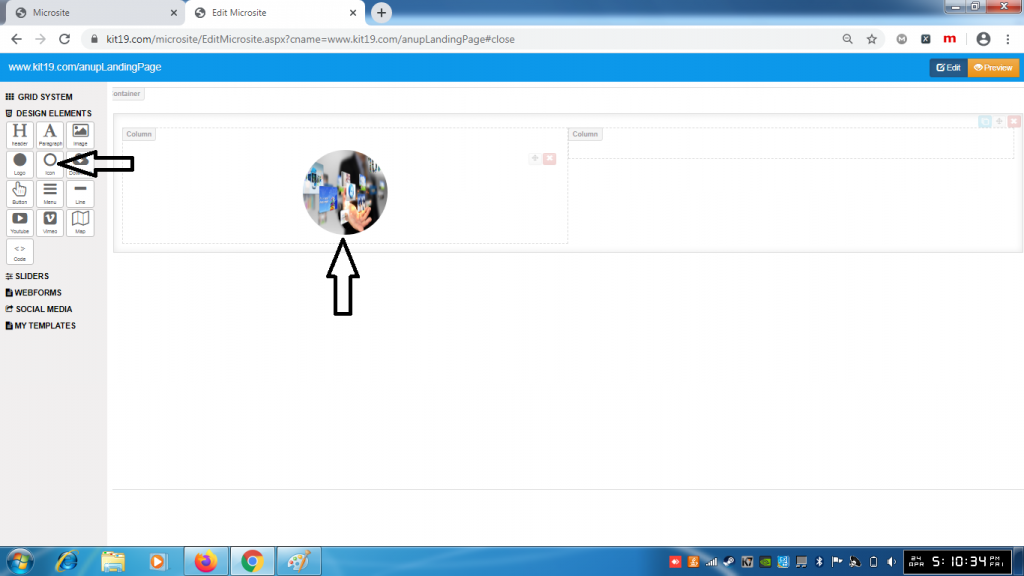
- Drag and drop the icon element to the desired location
- Icon element is used to add icons to the landing page
Note: You have to first add a grid element and then add an icon to the grid element
The button design element:
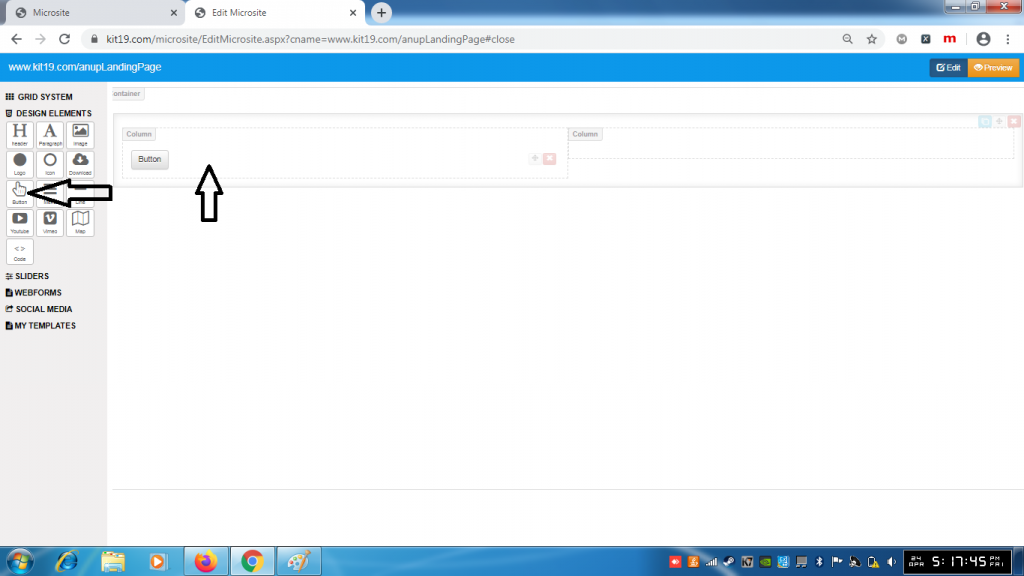
- Drag and drop the button element to the desired location
- Button element is used to add buttons to the landing page
- Buttons can be used for various purposes such as opening another page or adding a desired functionality
Note: You have to first add a grid element and then add a button to the grid element
The menu design element:
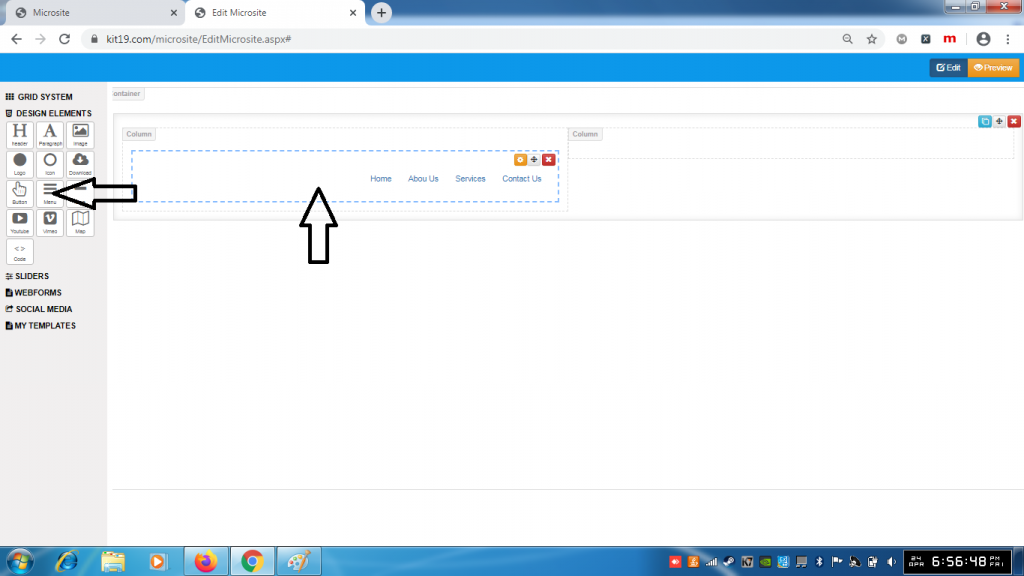
- Drag and drop the menu element to the desired location
- Menu element is used to add navigation bar to the landing page
- By default the menu has the options:
- Home
- About Us
- Services
- Contact Us
Note: You have to first add a grid element and then add a menu to the grid element
The line design element:
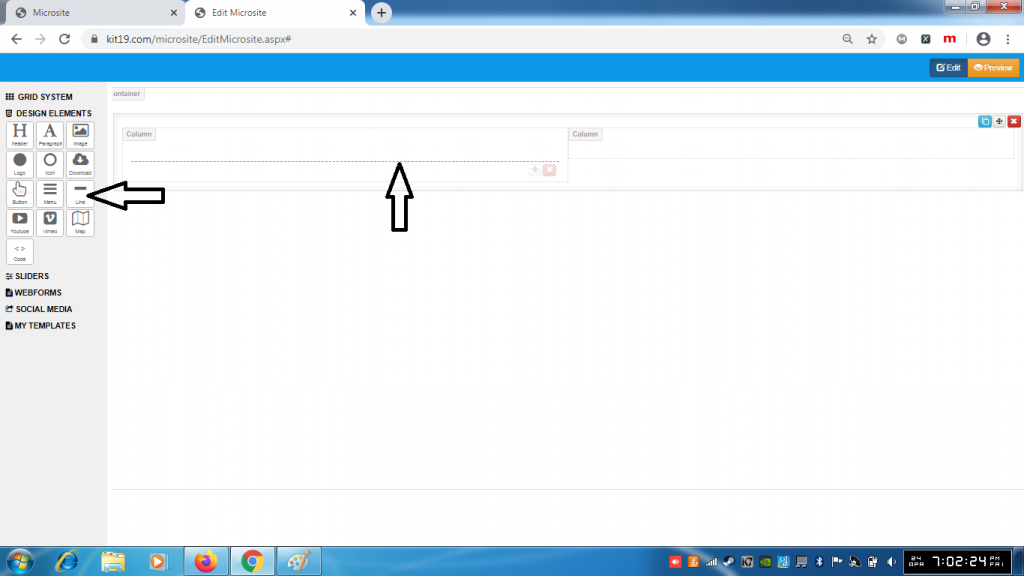
- Drag and drop the line element to the desired location
- Line element is used to add a horizontal dotted line to the landing page
Note: You have to first add a grid element and then add a line to the grid element
The Youtube design element:
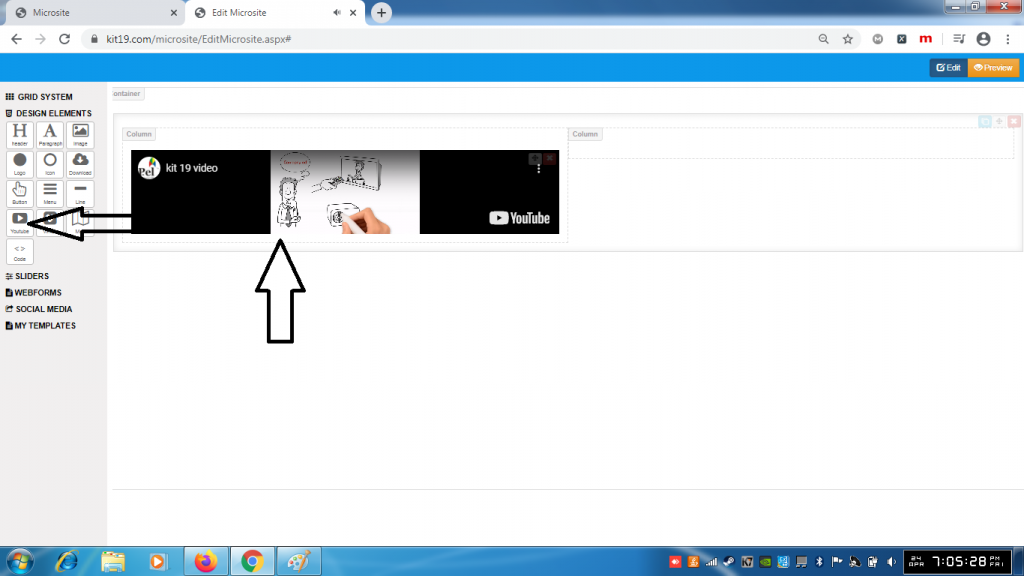
- Drag and drop the Youtube element to the desired location
- Youtube element is used to add a youtube video to the landing page
Note: You have to first add a grid element and then add a Youtube video to the grid element
The Vimeo design element:
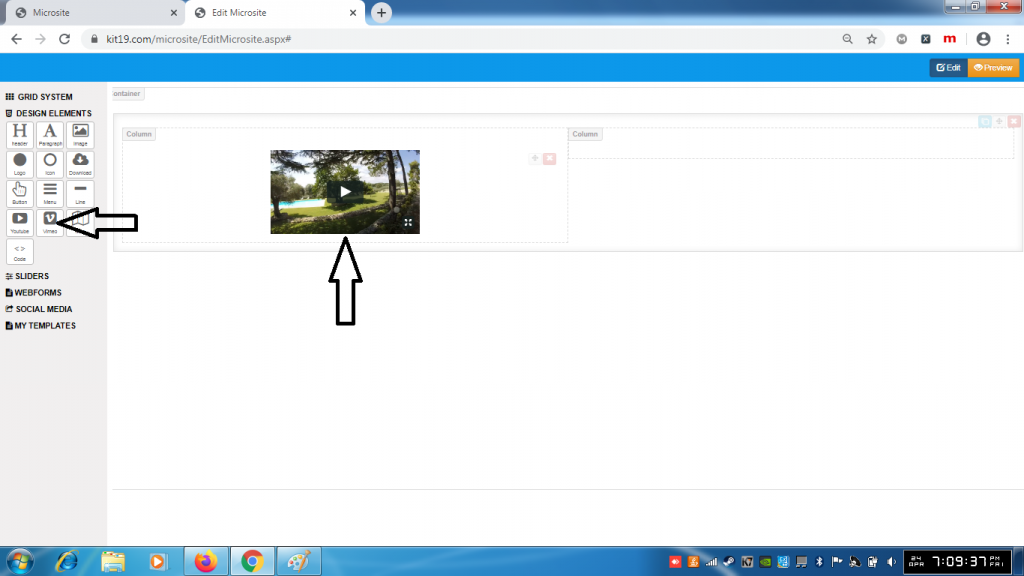
- Drag and drop the Vimeo element to the desired location
- Vimeo element is used to add a video to the landing page
Note: You have to first add a grid element and then add a Vimeo video to the grid element
The map design element:
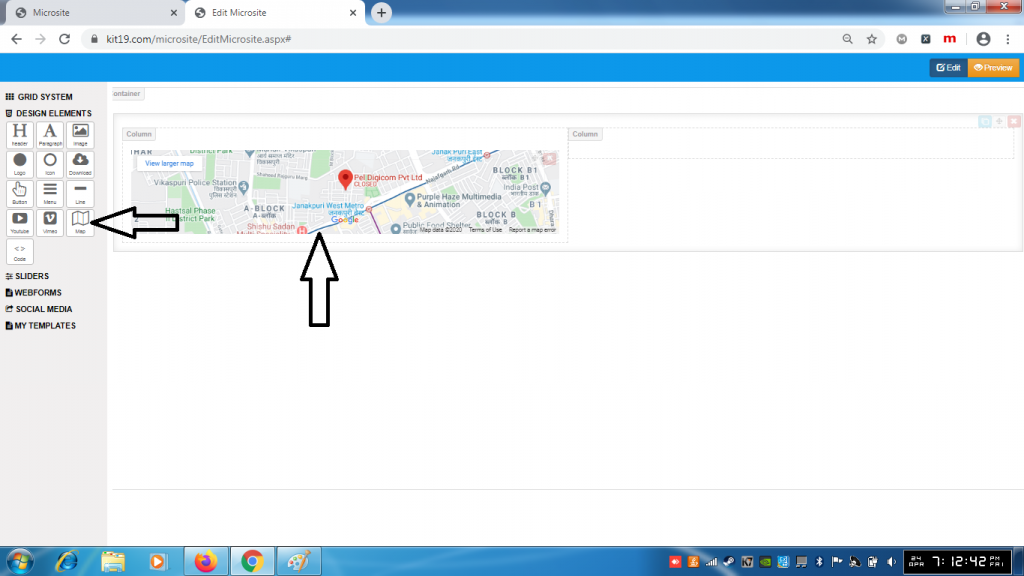
- Drag and drop the Map element to the desired location
- Map element is used to add Google Map to the landing page
Note: You have to first add a grid element and then add the Map to the grid element
The Code Element:
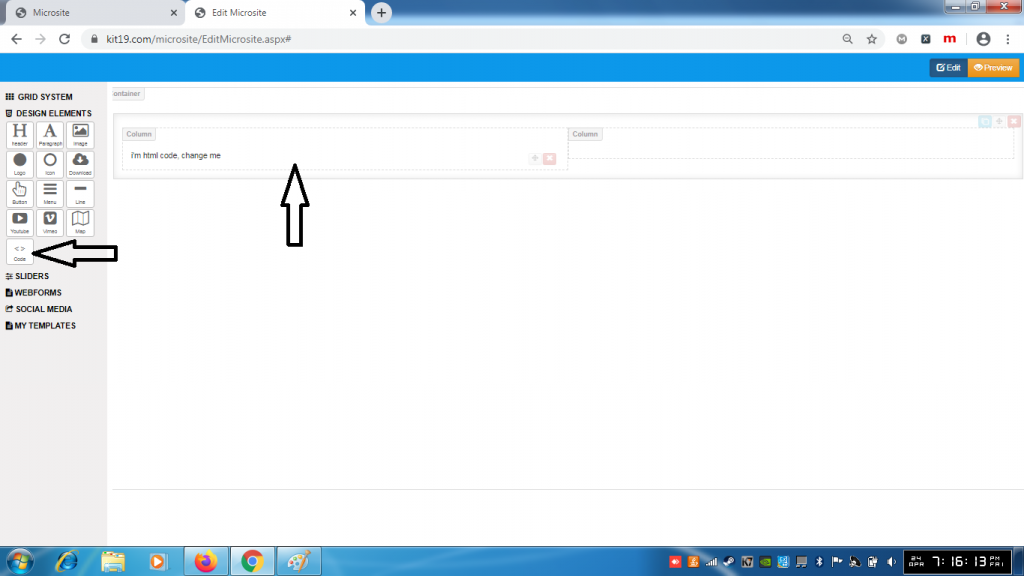
- Drag and drop the Code element to the desired location
- Map element is used to add HTML code to the landing page
- It may be required to add new content or change the existing HTML on the landing page
- With the code element you can easily change or add the HTML content
Note: You have to first add a grid element and then add the Code element to the grid element
