 knowledge kit19
With the slider element you can add a slide show on the landing page. The slider would automatically change the image after a fixed interval. Depending upon the selected option you can add a 3 image to 8 image slide
To add a slide show to the landing page follow the steps mentioned below:
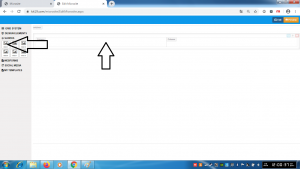
- Click and hold any of the slide element icon
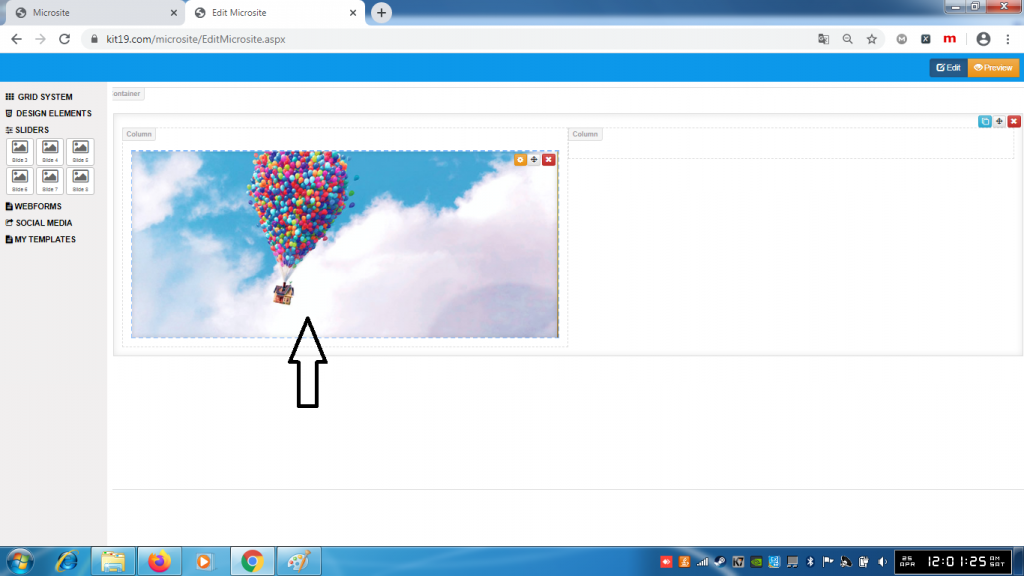
- Move the slider element to the desired location
- Release the slider button
- The slider would be added to the grid element
There are six slider options:
- Slide 3 (this would add a 3 image slide show to the landing page)
- Slide 4 (this would add a 4 image slide show to the landing page)
- Slide 5 (this would add a 5 image slide show to the landing page)
- Slide 6 (this would add a 6 image slide show to the landing page)
- Slide 7 (this would add a 7 image slide show to the landing page)
- Slide 8 (this would add a 8 image slide show to the landing page)
Note: You can switch the slider options i.e. if you have added an 8 image slide show to your landing show you can replace it with a 7 image slide show or with any other option.
