 knowledge kit19
WebForm Settings:
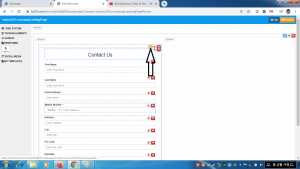
- Click the webform settings icon
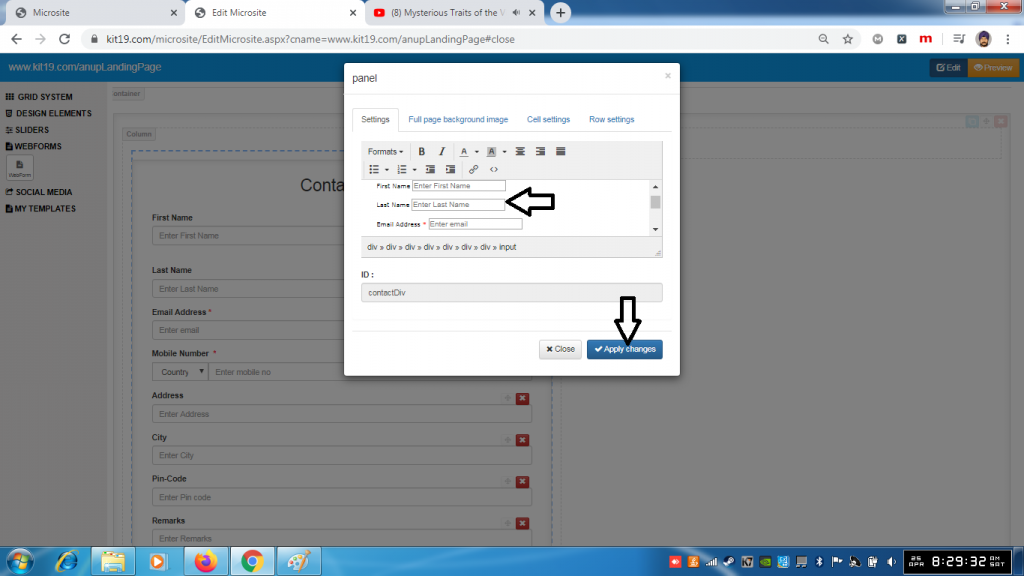
- Add or delete any field of the webform
- Click the Apply changes
- The contents of the webform will change
WebForm Full Page Background Image Settings:
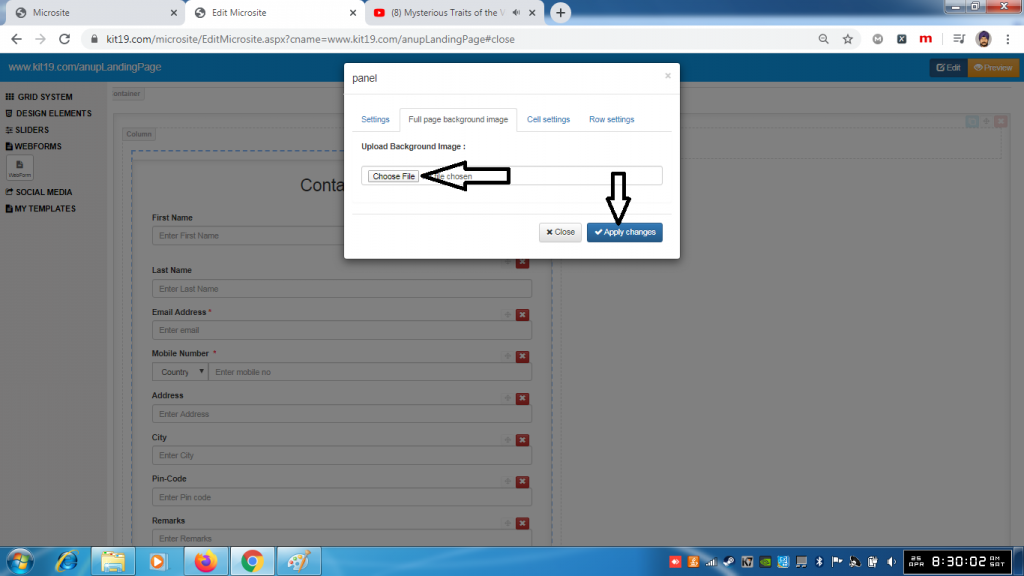
- Choose an image file
- Click Apply changes
- A background image would be added to the Form
Note: Once a background image is added it cannot be removed. You can change the background image as many times as you want. To remove the back around image, just delete the Form element and add a new one.
WebForm Cell Settings:
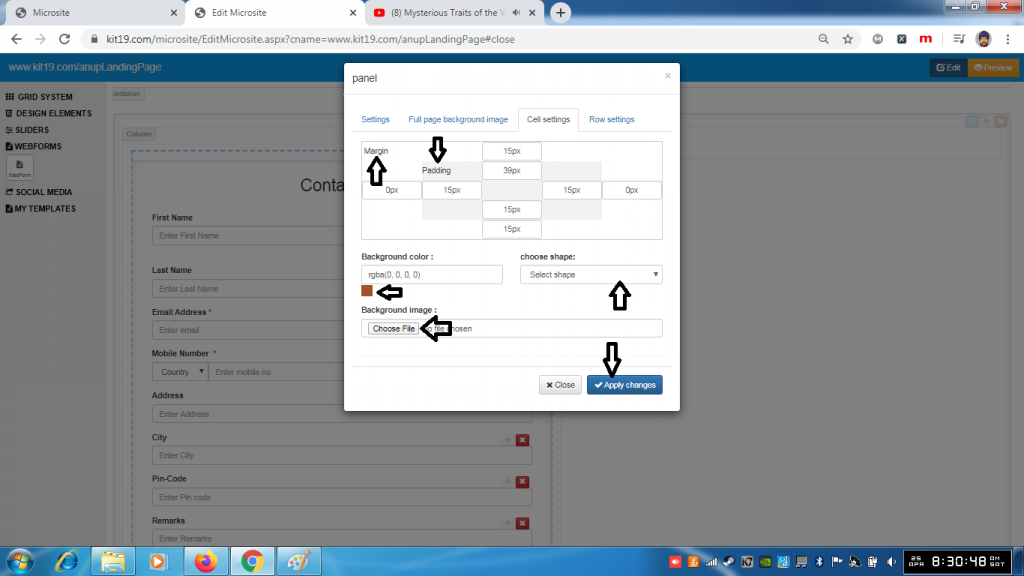
- Change the margin of the webform cell
- Change the padding of the webform cell
- Change the background of the webform cell
- Change the shape of the webform cell
- Change the background image of the webform cell
- Click Apply Changes
Note: You can change all of the settings of the webform cell at the same time or you can change the settings that you like.
Webform Row Settings:
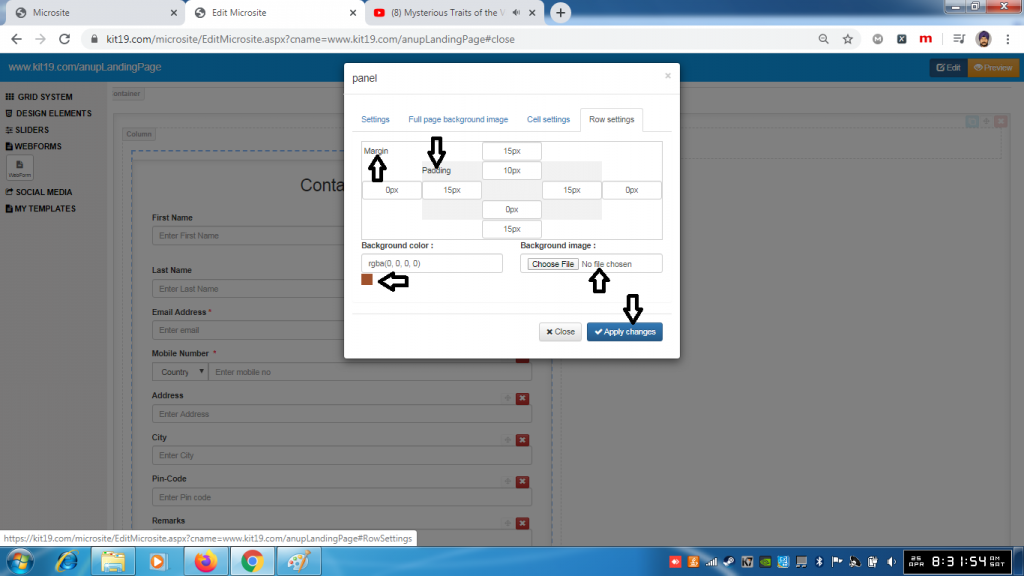
- Change the padding of the webform rows
- Change the margin of the webform rows
- Change the background color of the webform rows
- Change the background image of the webform rows
- Click Save Changes
Note: You can change all of the settings of the webform row at the same time or you can change the settings that you like.
