 knowledge kit19
The Webhook Button setting allows you setup an action that is taken when the user clicks a button your webform.
To add or edit the Button setting on a webform follow the steps mentioned below:
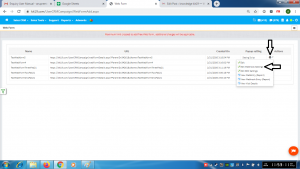
- Go the page https://kit19.com/UserCRMCampaign/WebFormAdd.aspx
- Click the edit icon
- Click Edit WebHook Settings
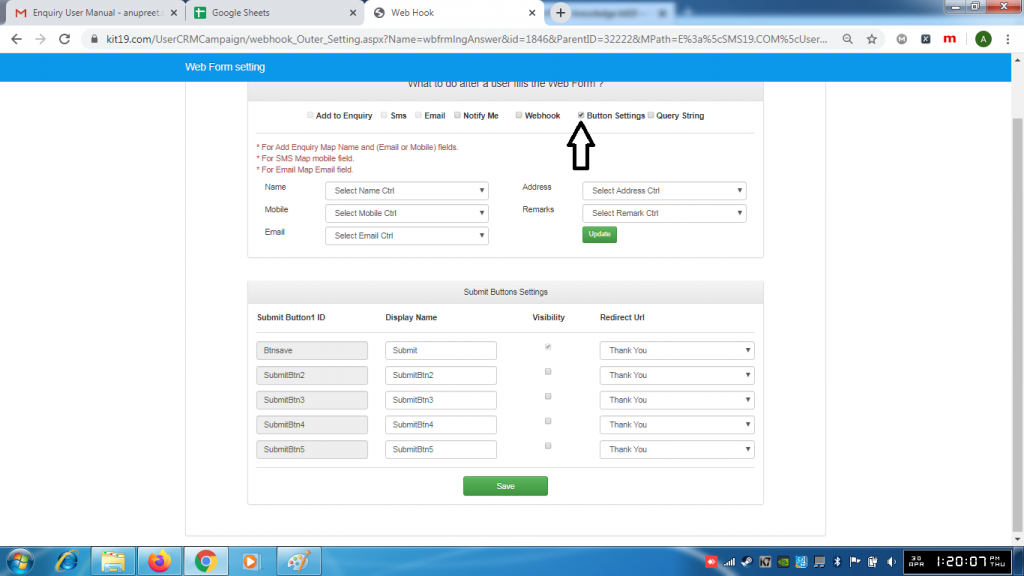
- Tick the checkbox button
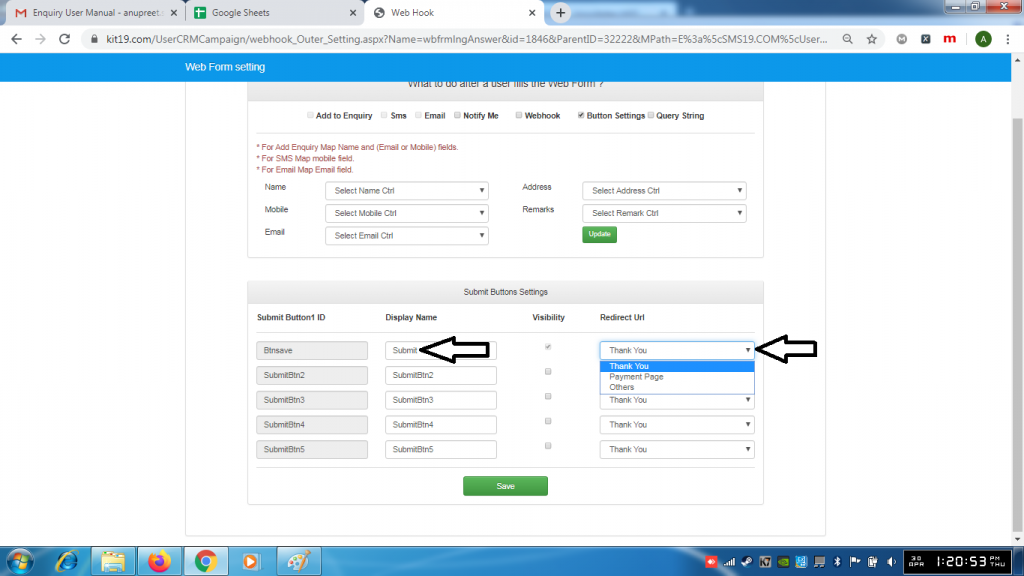
- By default the first checkbox in the Visibility Column would checked
- Enter the Display name for the button
- Select a Redirect URL for your page from the drop down list
- If Thank You is selected a Thank you page is displayed when the user clicks the button
- If Payment Page is selected a Payment page is displayed when the user clicks the button
- If Others is selected a page that you added would be displayed
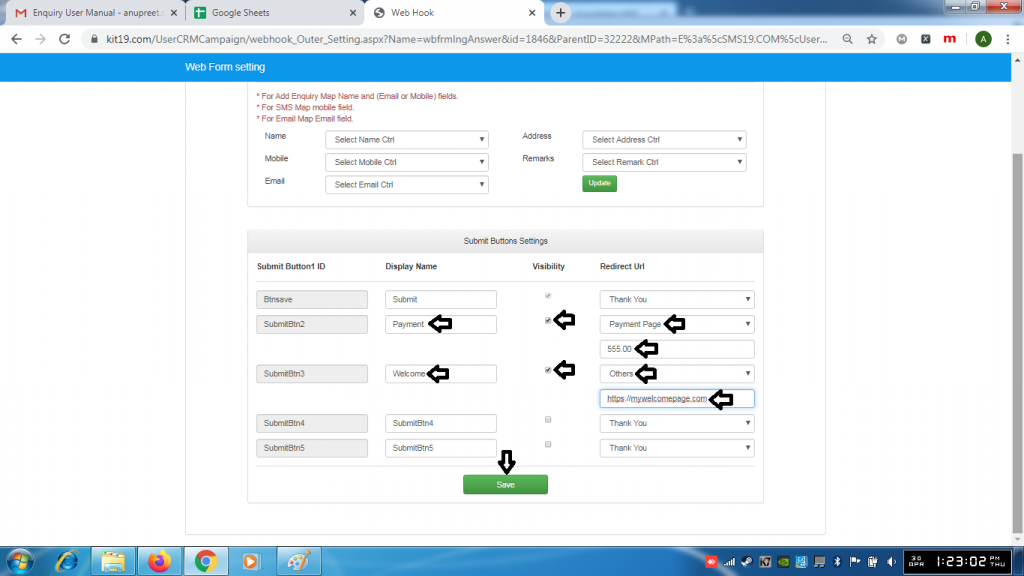
- Enter display name as Payment
- Select Payment page from the drop down list
- Enter the amount you wan your customer to pay
- Enter the name of your choice (in this case Welcome)
- Select Others from the drop down list
- Enter the URL for your page
- Click Save
Note:
- If the visibility checkbox is not ticked the button would not be displayed
- You can add upto 5 buttons to your WebForm
