 knowledge kit19
To add or edit the Add to Enquiry setting to a webform follow the steps mentioned below:
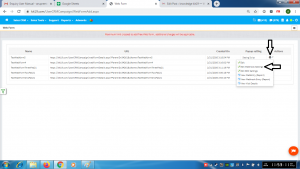
- Go the page https://kit19.com/UserCRMCampaign/WebFormAdd.aspx
- Click the edit icon
- Click Edit WebHook Settings
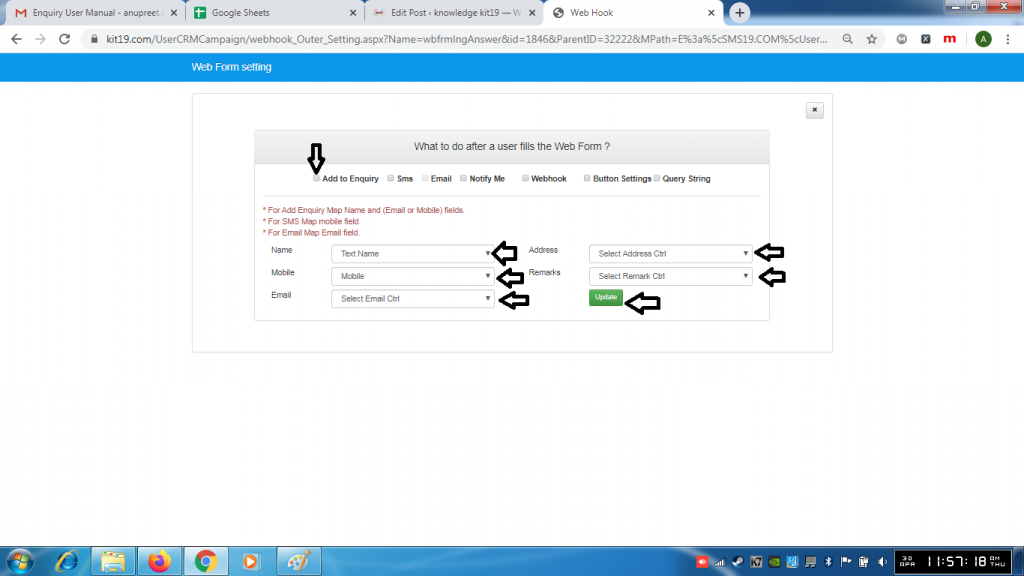
- Tick the checkbox Add to Enquiry
- In the Name drop down list select the field from your webform which contains the name of the customer
- In the Mobile drop down list select the field from your webform which contains the mobile of the customer
- In the Email drop down list select the field from your webform which contains the email of the customer
- In the Address drop down list select the field from your webform which contains the address of the customer
- In the Remarks drop down list select the field from your webform which contains the remarks entered by the customer
- Click the Update button
Note:
- For adding an enquiry Name, mobile or email or both are mandatory
- Rest of the fields optional
- For adding an enquiry you have to create Name, mobile or email or both fields on your webform
- There are only five fields that can be added to the enquiry
- To add these fields to the enquiry these fields have to be created on the webpage first.
