 knowledge kit19
Webhook Query String allows you to map a selected field from your webform to a selected parameter from Leads.
To add or edit the Button setting on a webform follow the steps mentioned below:
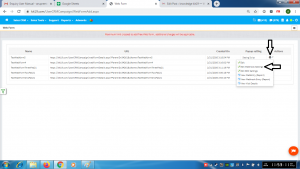
- Go the page https://kit19.com/UserCRMCampaign/WebFormAdd.aspx
- Click the edit icon
- Click Edit WebHook Settings
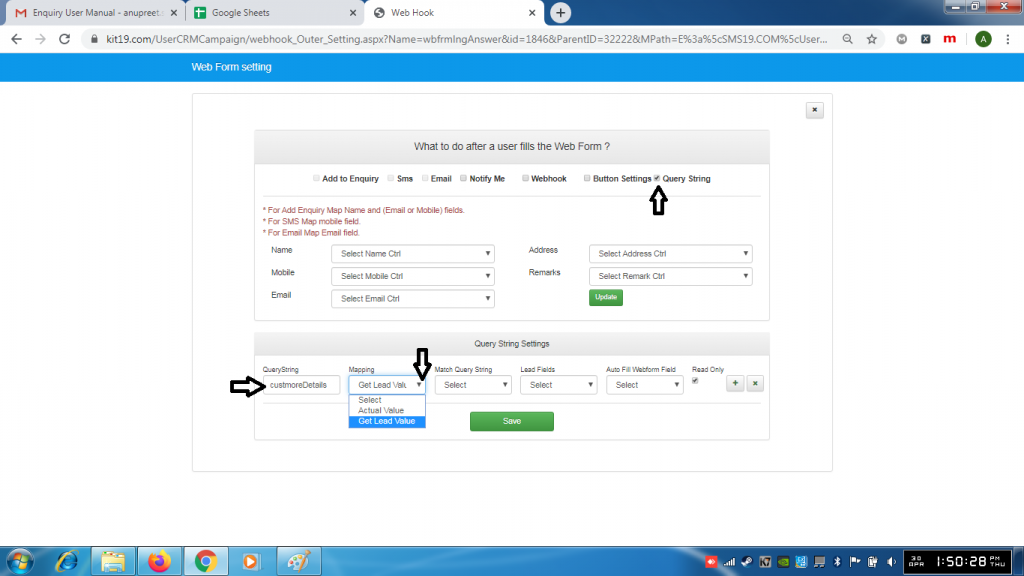
- Tick the checkbox Query String
- Enter a name for your Query String
- Select an option from the Mapping drop down list
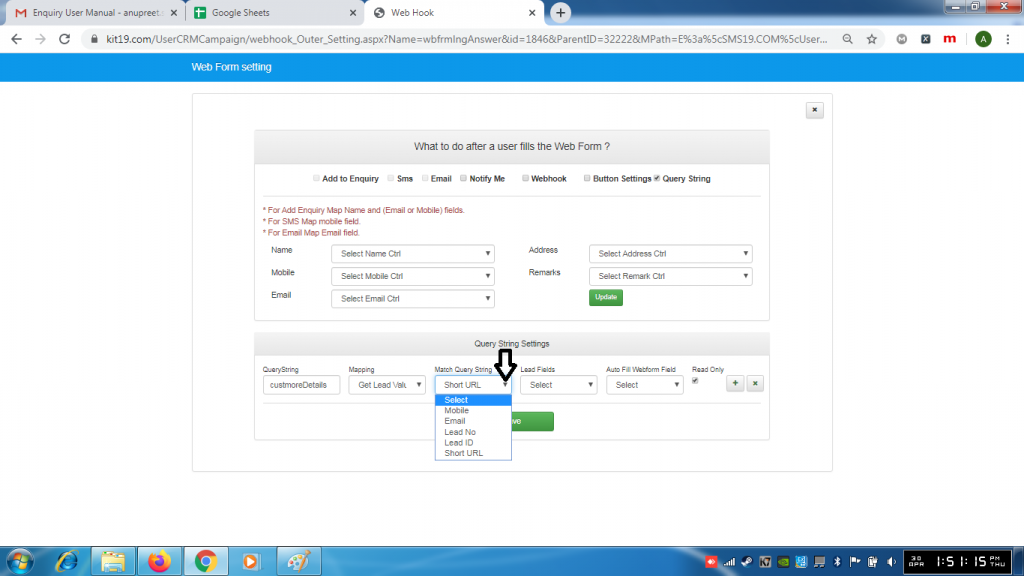
- Select an option from Mach Query String drop down list
- Select an option from Leads Field drop down list
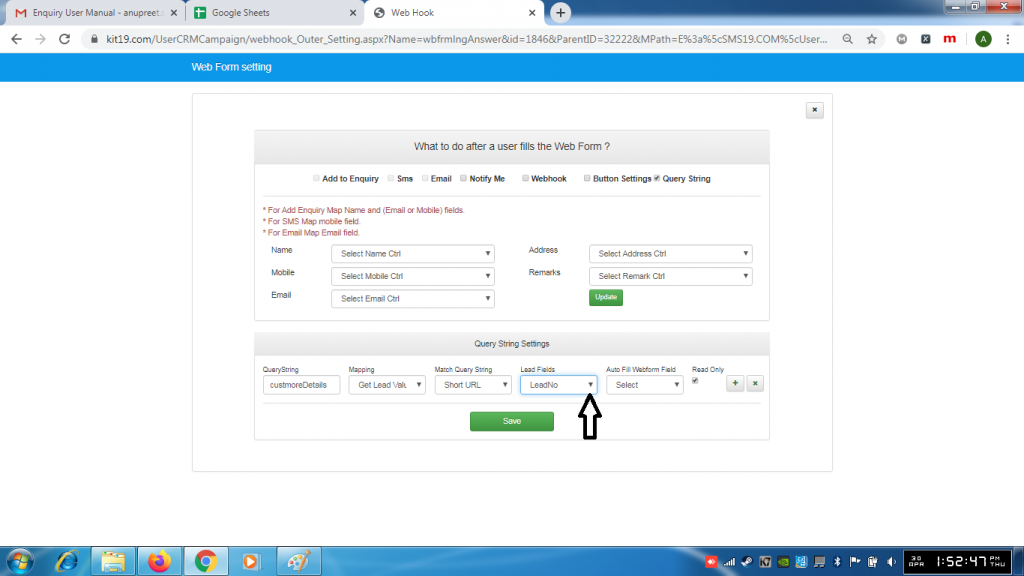
- Select an Option from the Lead fields drip down list
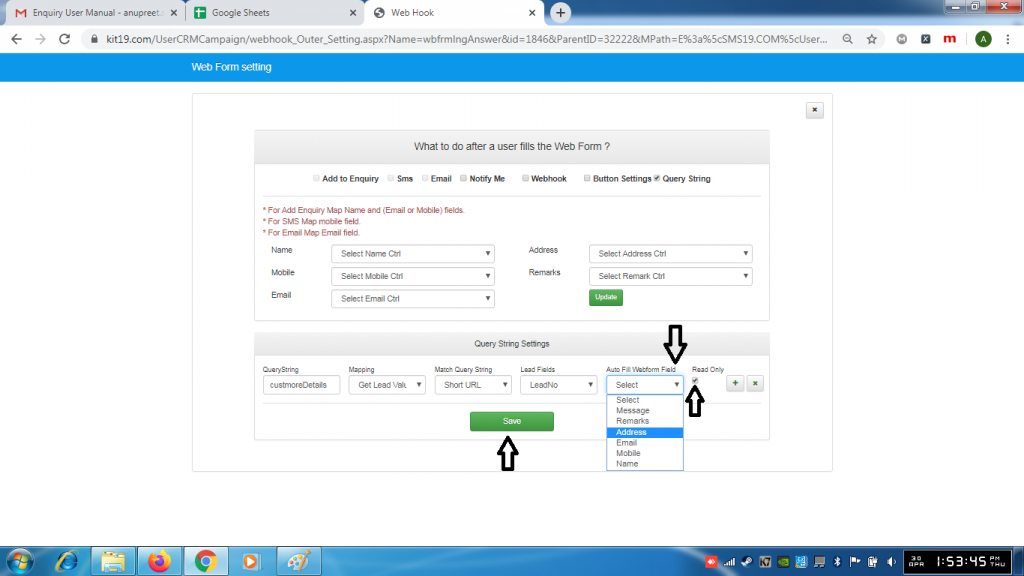
- Select an option from the Auto Fill Webform Field
- Tick the box ReadOnly if you want this query to be read only
- Click the Save button
- The Query String would be added to your web form
Note: You can add as many Query Strings you want to your webform.
To add or delete a query String follow the Steps mentioned below
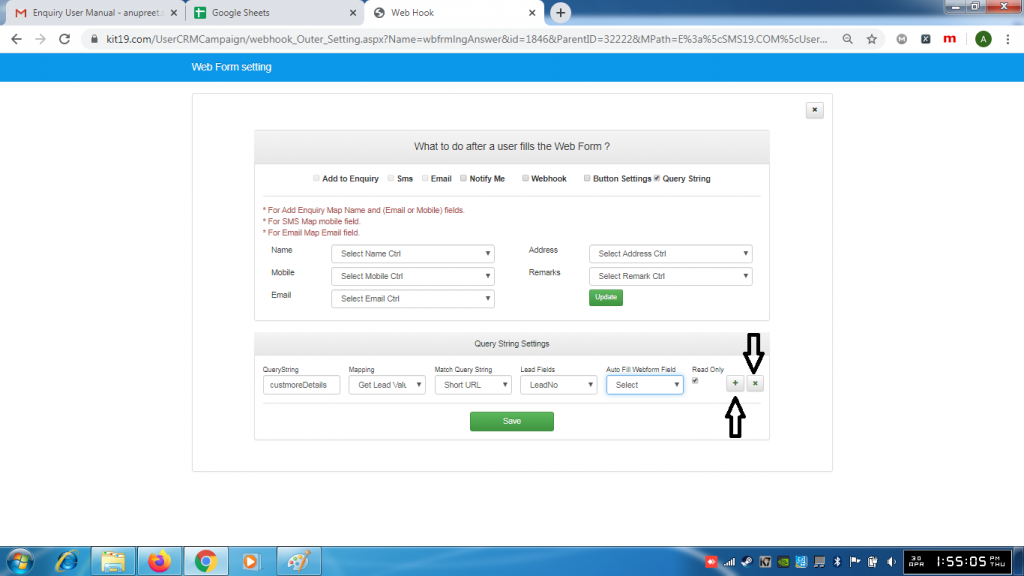
- To add a Query String click the + button and follow the steps mentioned above and click Save
- To delete a Query String click – button and click Save
