 knowledge kit19
How to create a lead with mandatory and optional fields:
Following fields are optional for creating a lead:
- Basic
- Mobile 2 field
- Mobile 3 field
- Email 2 field
- Email 3 field
- Profile picture
- Lead Details
- Medium
- Campaign
- Initial Remarks
- Company details
- Country
- State
- City
- Pin Code
- Residential Address
- Official Address
- Custom fields
To create a lead with optional fields follow the steps mentioned below
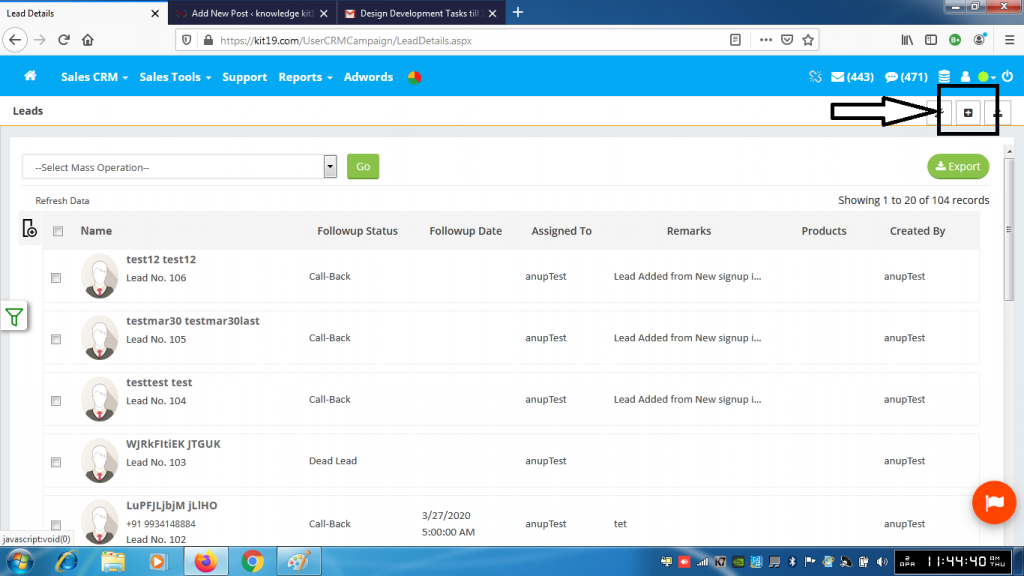
- Click the add lead button
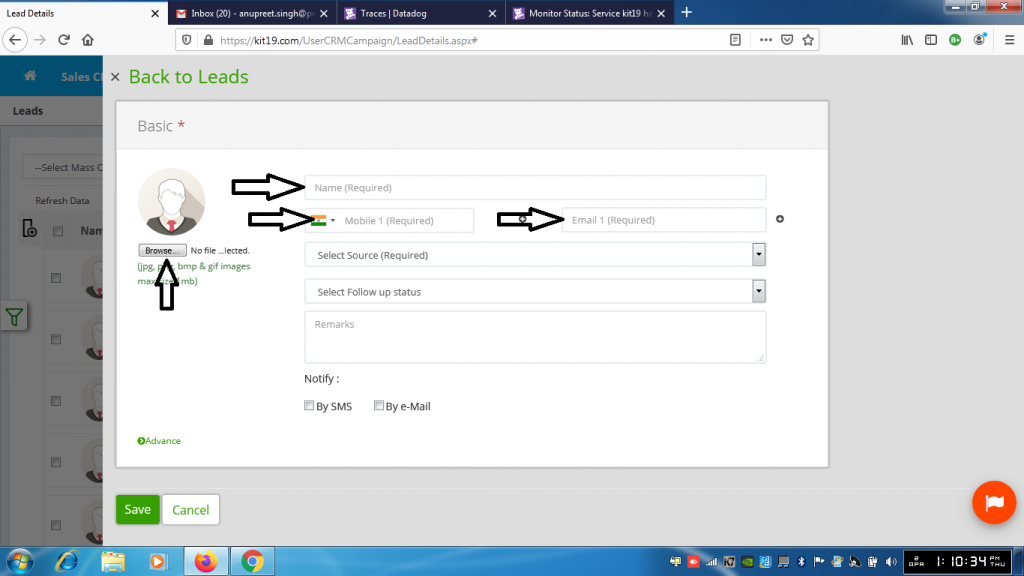
- Fill out the Name field
- Fill out mobile 1 field or email 1 field or both
- Add a profile picture (Note: Only .png, .jpg, .bmp, .gif files are allowed)
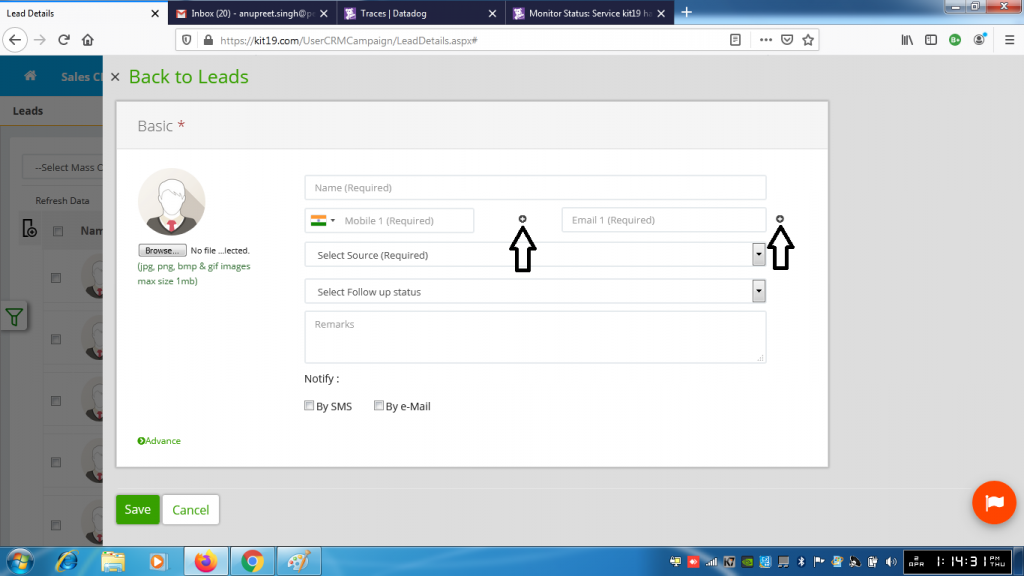
- Click the + button next to mobile 1
- Click the + button next to email 1
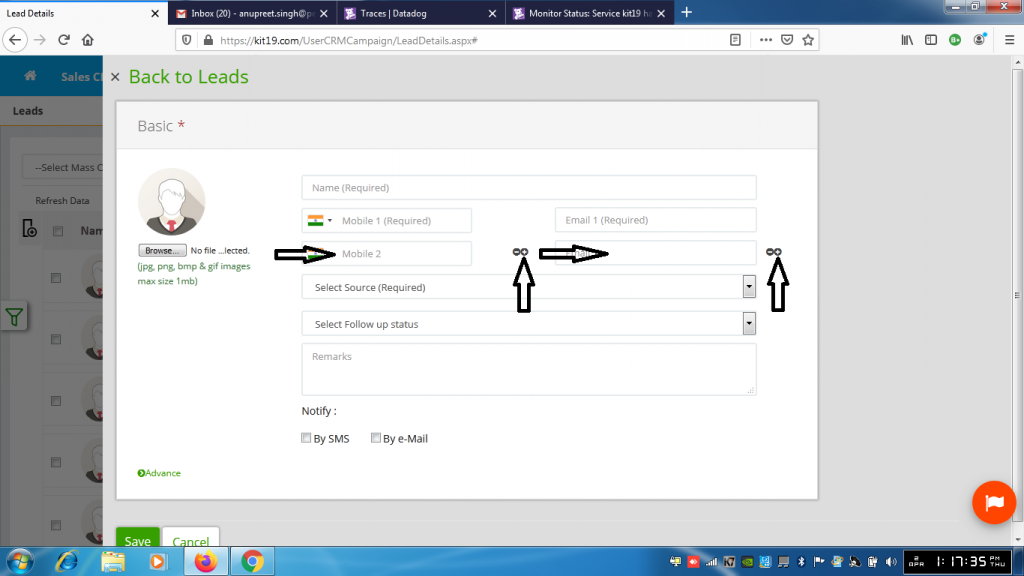
- Fill out mobile 2 field
- Fill out email 2 field
- Click the + button next to mobile 2 field
- Click the + button next to email 2 field
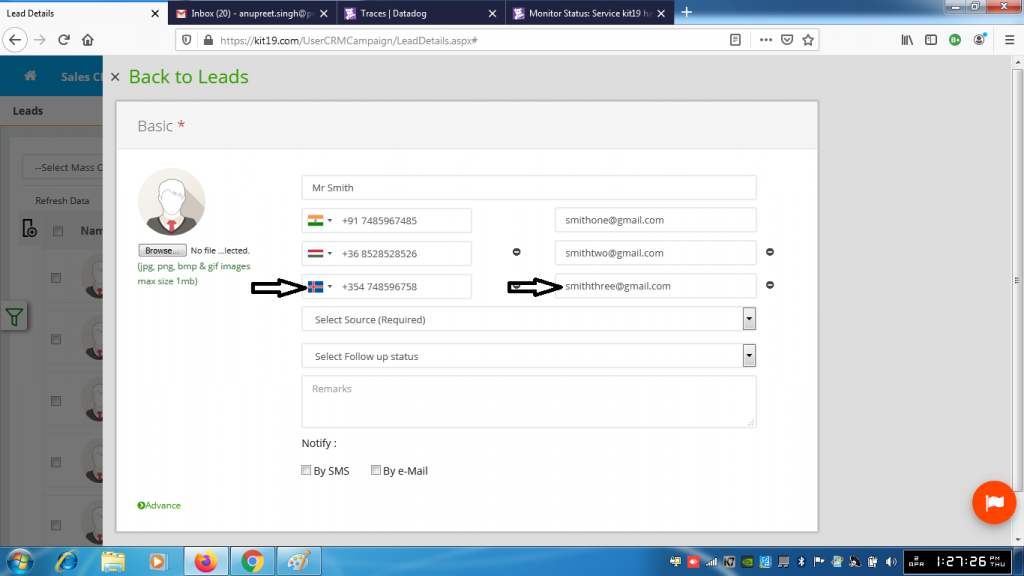
- Fill out mobile 3 field
- Fill out email 3 field
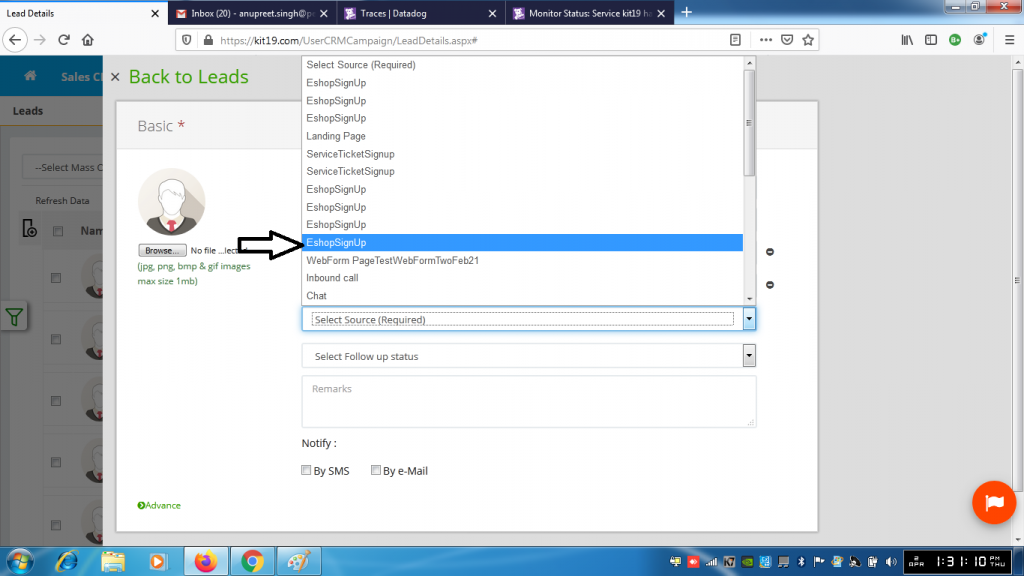
- Select a source
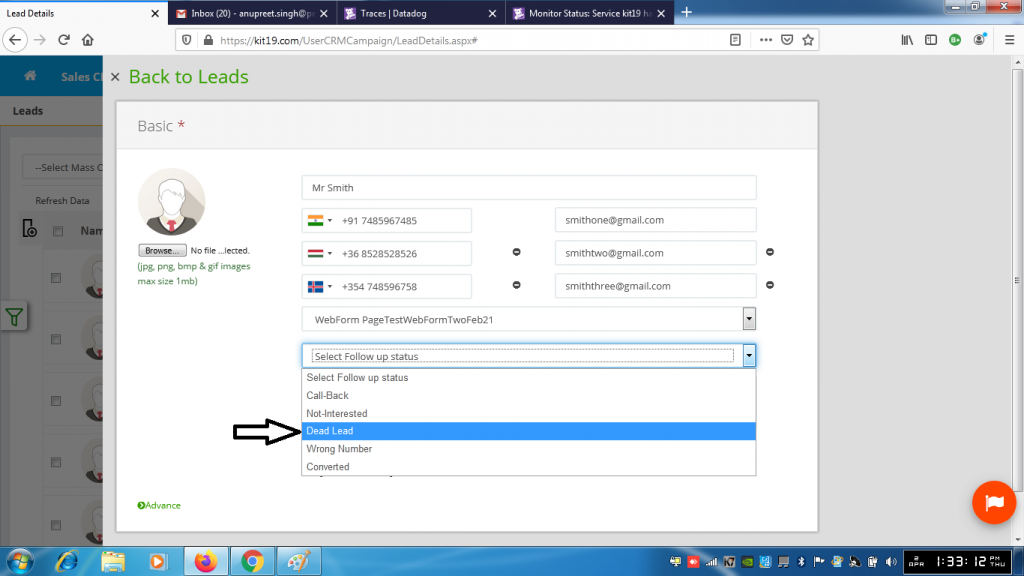
- Select a follow up status
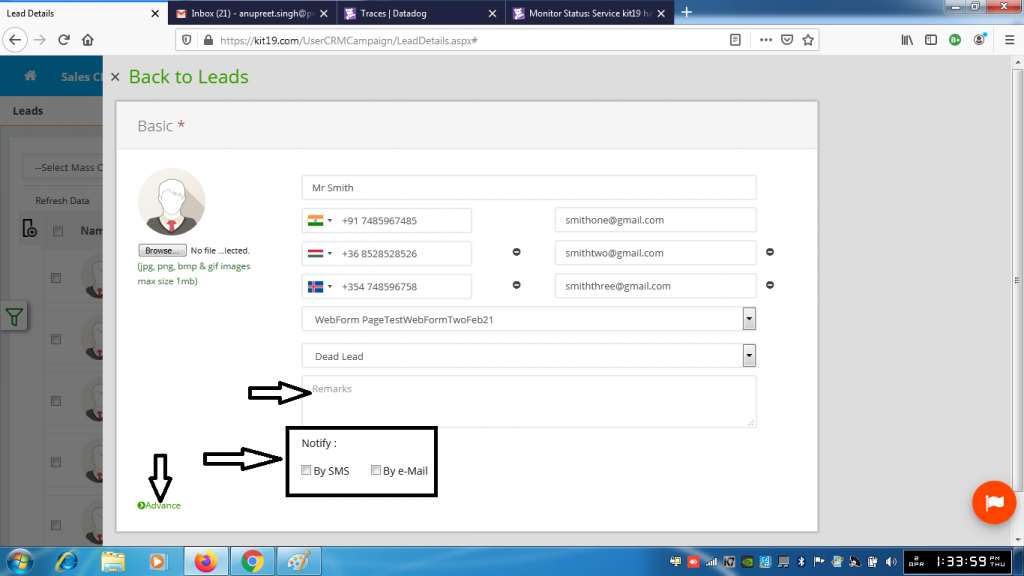
- Fill out the mandatory fields of follow up status
- Select Notify SMS (Optional. If you select this option the customer would be notified via SMS)
- Select Notify Email (Optional. If you select this option the customer would be notified via Email)
- Click Advance
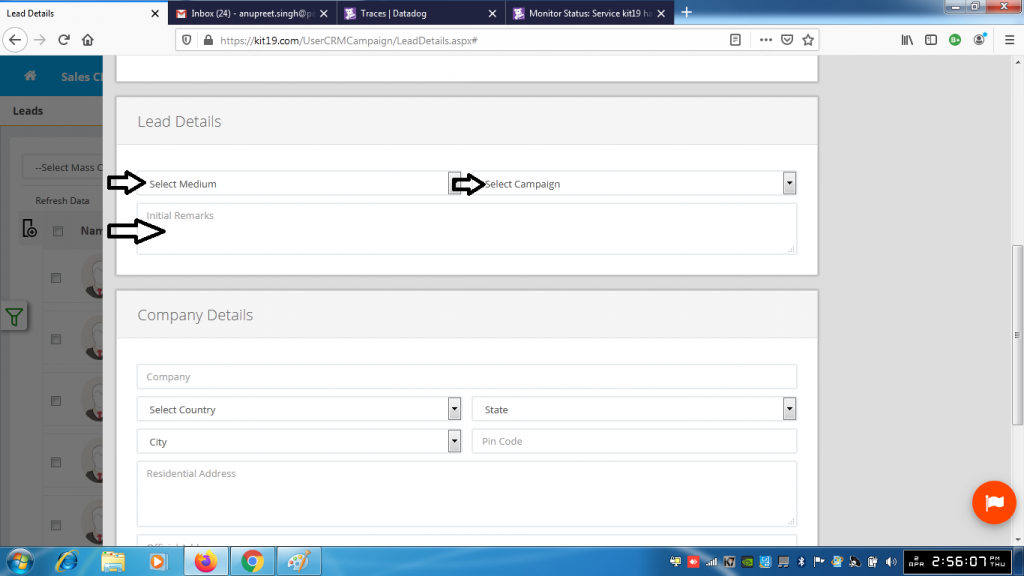
- Select Medium
- Select Campagin
- Fill out Initial Remarks
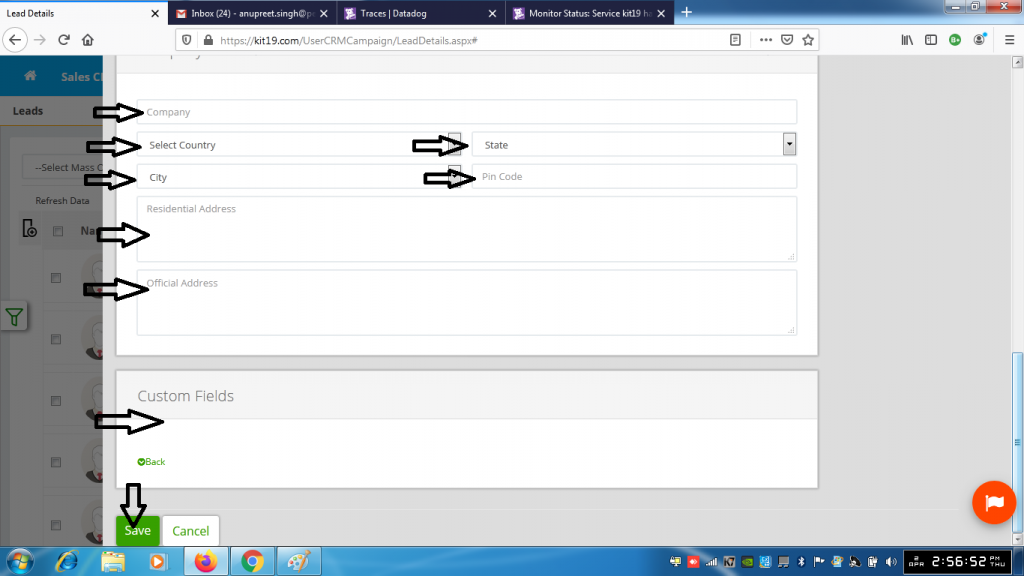
- Fill out Country Name
- Select State
- Select City
- Fill out the Pincode field
- Fill out the Residential Address field
- Fill out the Official Address field
- Fill out the custom field (if any)
- Click Save
Lead with the selected follow up status will be created.
Note: It is not mandatory to fill out all of the optional fields
